Smart campaigns are a simplified type of ads campaigns. You can launch an ad in just a couple of steps. All audience settings, images and text will be automatically selected by us. Suitable for small and medium-sized business owners.
You can create a smart campaign if you are promoting a community, profile, website, or catalog of products and services
How to create a smart campaign
- In the “Campaigns” section, click the “Campaigns” tab and click “Create”.
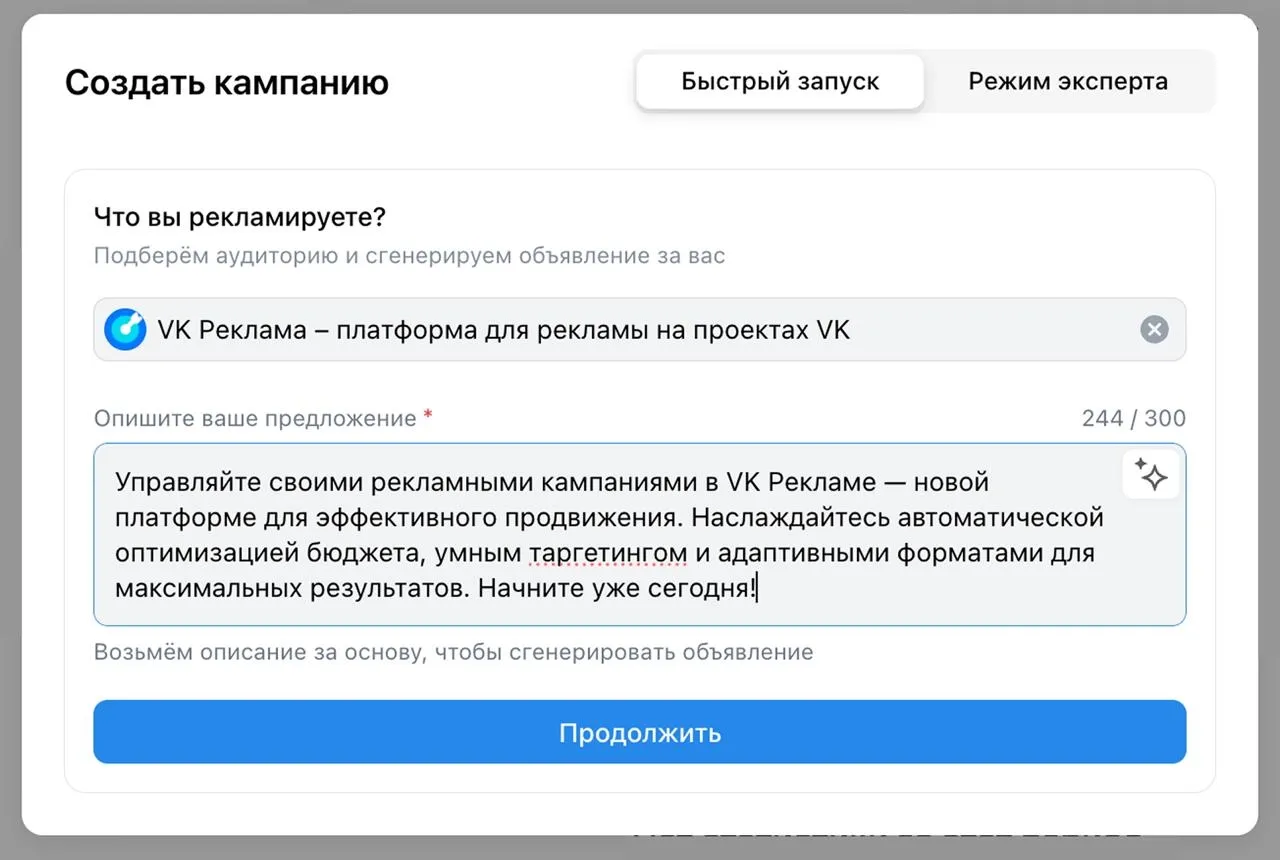
- Go to the "Quick Start" tab.
- Click the “Smart сampaign” tab.
- In the "What are you advertising?" section, enter a link to a community, profile, or website, or select the desired item from the drop-down list.
- Describe your offer: briefly talk about your product or service. You can also choose a description option from the neural network.
- Click “Continue” to go to the next step.
Advertising a community or profile
The following target actions are available for community and profile advertising:
- Join сommunity or Follow Profile — to get more subscriptions to a group or profile
- Write to сommunity or Sending a private Message — to get more messages to a group or profile
- Promotion of the post or Reaction to a post — to promote a publication from a group or profile: engage the audience, like, and share your publication
After selecting a target action, the system will automatically generate an ad and audience settings.
If you are running a post promotion, select the desired post for the promotion. Make sure it complies with the Advertising Guidelines
Advertising sites
To advertise your website, use the Clicks on ads target action to get more clicks and traffic to your website.
After selecting the target action, the system will automatically generate an ad and audience settings.
When you run website advertising, install a pixel on your website to improve the effectiveness of your campaign.
Advertising of goods or services
You can run ads for products or services. To do this, use the Promotions of products and services target action to get more clicks and views for your products or services.
When you run an ad, the system will automatically select products or services from your community or website. In this case, the user will see products or services that are tailored to their interests and behavior.
If you want to select a specific group of products or services to promote, go to the ad editing mode and select the desired catalog and product or service group.
If you want to select specific products or services to run an ad, click "Switch to Manual Campaign." In this case, your previously defined settings will be saved, and you can make detailed changes.
If your website doesn't have a product catalog or you want to upload a different one, you can create one manually. Learn more about creating a catalog
If you want to select a different item or change the description of a product or service, click the "Edit" button next to the advertised resource name. This will open an editing field.
Setting up a smart campaign
Ad
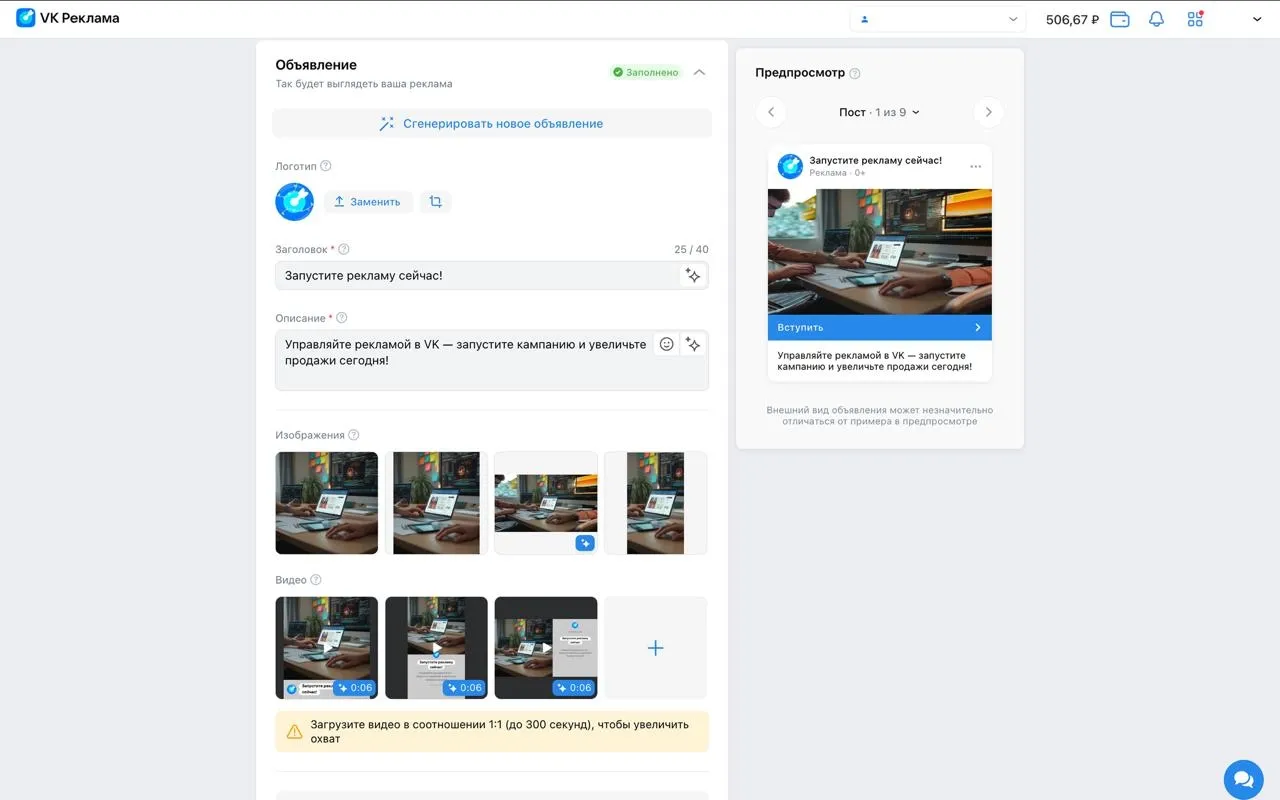
Review your selected settings and the generated ad. If necessary, you can manually edit them: replace the logo, headline, description, and media files. Learn more about working with text, images and videos
If you want to completely change your ad, click the "Generate New Ad" button. The system will create a new ad version.
In the field on the right, you can preview how your ad will appear on the platform. The ad's appearance may differ slightly from the preview. Learn more about previewing
Audience
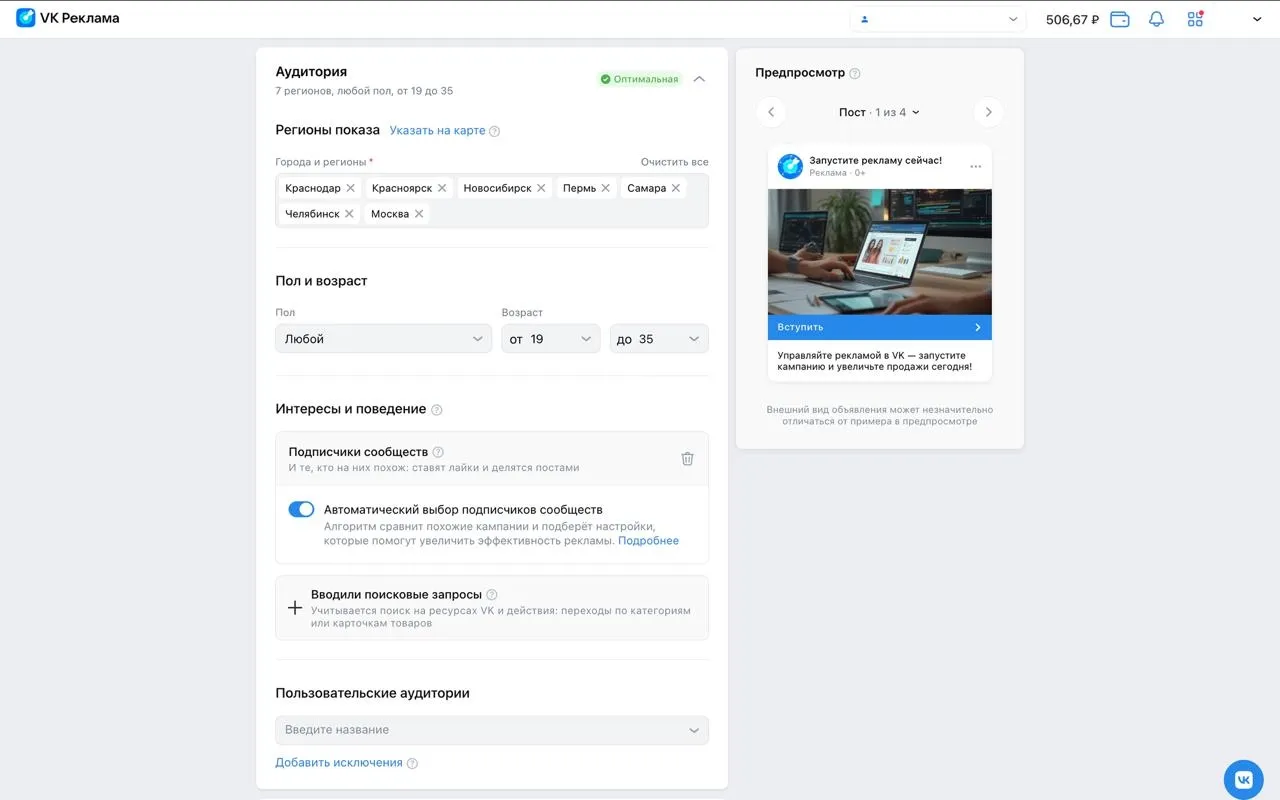
In this section, you configure the audience your ad will be shown to.
By default, the audience is selected automatically, but you can configure settings manually. To do this, expand the "Audiences" section and specify the desired targeting. Learn more about available targeting
You can use the forecaster to see the approximate audience reach after your ad launch.
Budget
Specify how much you're willing to spend on your campaign per day. Below, you'll see a slider with recommendations — you can use it as a guide when setting your budget.
Here, you can also set the maximum cost per target action — the maximum amount you're willing to pay for a single target action.
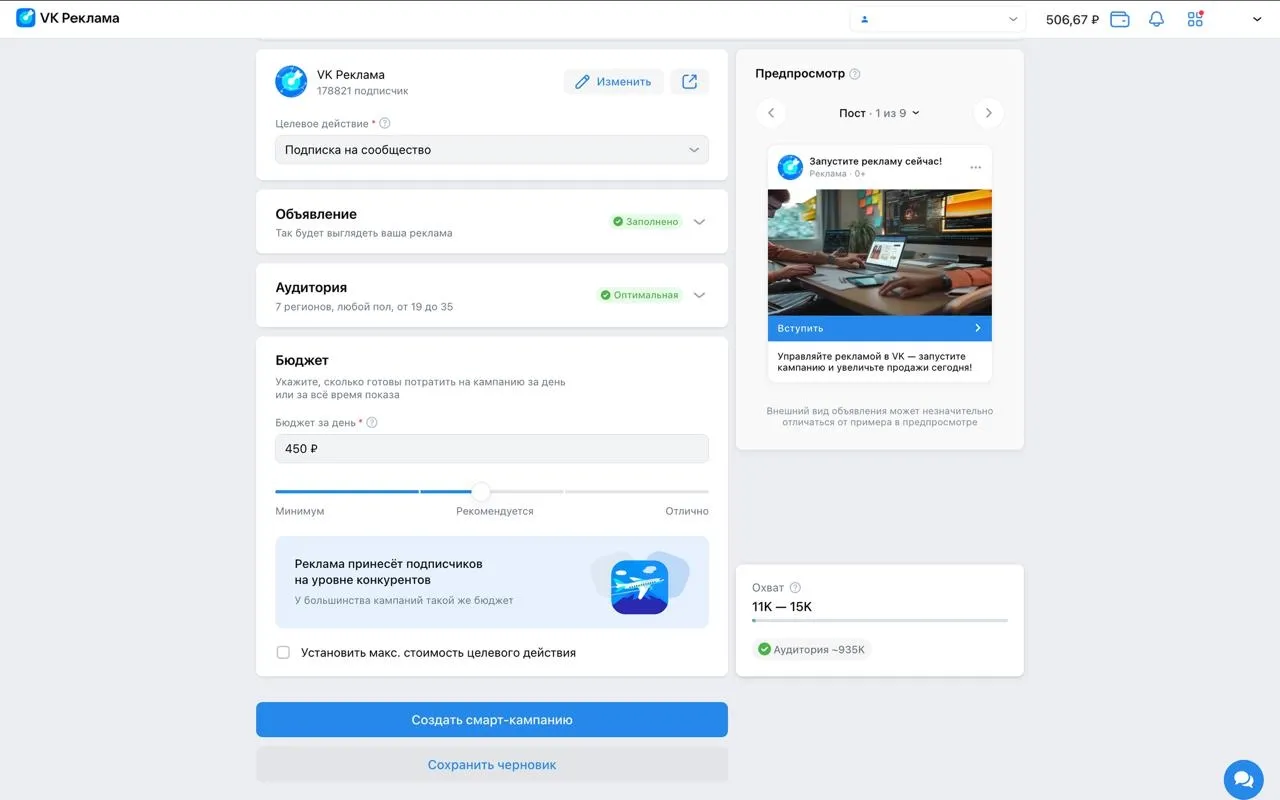
Next, click on the “Create a Smart сampaign” button. The campaign will be launched immediately after moderation check. You can monitor the moderation status on the “Campaigns” tab of the dashboard.
If you want to run your ad in the normal mode, click "Switch to manual campaign"
How to evaluate the result
You can analyze the statistics of the campaign on the dashboard: on the “Campaigns” or “Ads” tabs. Metrics and expanded statistics will help you evaluate the effectiveness of an advertising campaign