With VK Ads, users can promote videos and live streams published on VKontakte. In this guide, we'll walk you through how to properly set up a campaign to promote video content, explore the platform's tools that can help boost your ad performance, and highlight what to focus on when evaluating your campaign results.
Who video content promotion in VK Ads is for
Promoting videos and live streams through VK Ads is useful for bloggers, streamers, business owners, and experts who publish original content in their VKontakte community. Video and live stream ads help you reach a new audience that's potentially interested in your community's niche, attract new followers, and boost engagement among your existing ones.
Campaign setup
1. In your VK Ads account, go to the "Campaigns" section, then navigate to "Awareness and coverage" → "Post, video, clips, Dzen article" → "VKontakte Post, video, or clip" → and select "Videos and broadcasts".
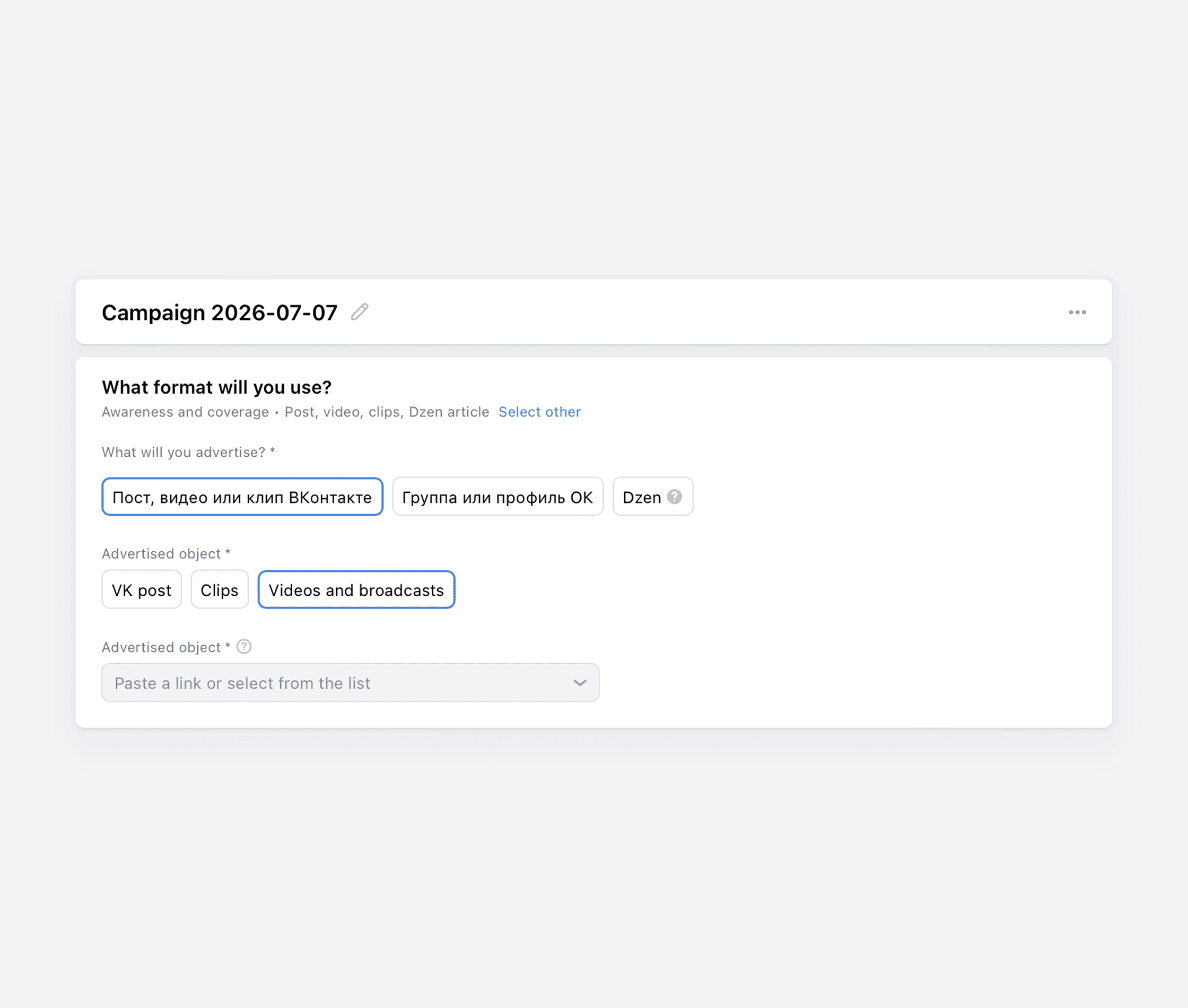
2. In the "Advertised object" block, select the VKontakte community from the dropdown list. For the community to appear in the list, you need to:
- be its administrator,
- log into VK Ads using the same VK ID that you use to manage the VKontakte community.
3. A target action is what users should do when they see your ad. For promoting videos and broadcasts, only one target action is available: "Ad impressions". Your campaign budget will be charged per 1,000 impressions.
4. The "Budget optimization" option is enabled by default. We recommend leaving it enabled so that VK Ads algorithms can automatically distribute the budget across ad groups to help you get more target actions.
Next, select a campaign bidding strategy — the algorithm will use it to participate in the ad auction:
- Second price mean — the impression price varies within ±50% of your bid if the algorithms consider the auction efficient. This strategy helps you achieve maximum coverage within your budget.
- Fix price — the bid remains the same in all auctions, regardless of competitors' bids. It allows you to accurately forecast your promotion costs.
- Limit price. In this case, you set the maximum cost per target action and participate in the auction at the lowest possible price. The strategy optimizes impression costs but narrows the audience, so we recommend setting the target action cost with some margin.
We go into more detail on bidding strategies in our guide.
The final step at this tier is the budget. You can set it as either a daily budget or a total budget for the entire campaign duration.
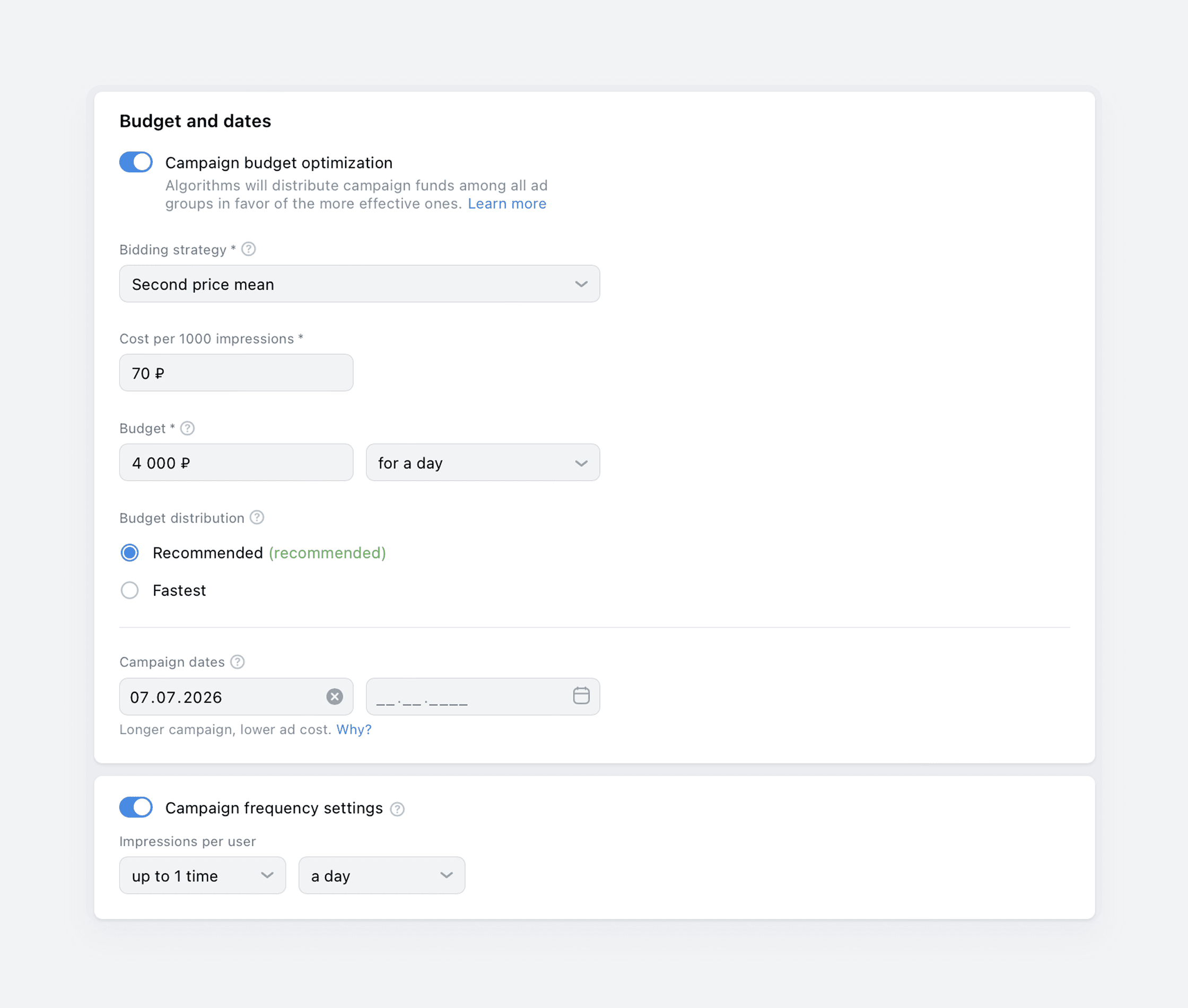
If you disable budget optimization at the campaign tier, you will need to select a bidding strategy and set a budget at the ad group tier instead.
When everything is ready, click "Continue". You will then proceed to the ad set tier.
Ad group setup
At this tier, you configure targeting for your ad group: geographic, socio-demographic, and others. These settings will apply to all ads within the same ad group.
Let's take a closer look at how to define settings at this tier.
1. Bid strategy. This displays the strategy you selected at the campaign tier.
2. Ad dates. You set the dates manually for the ad group.
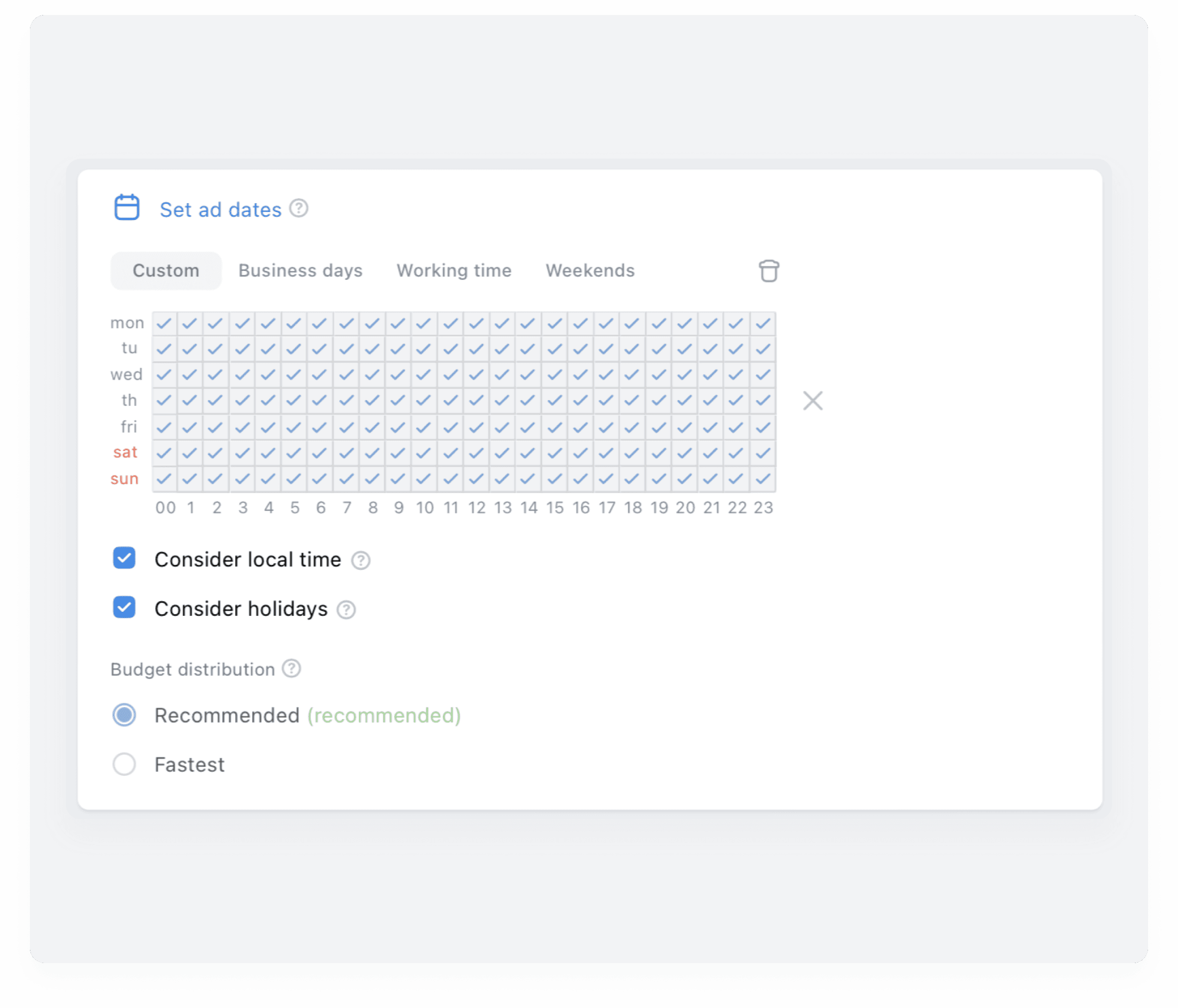
3. Show time is the timetable according to which your ads will run. Choose appropriate hours and days. You can fill in the schedule manually or pick from the preset options: "Weekdays," "Business Hours", and "Weekends". Pay attention to two settings — they're enabled by default, but you can disable them if needed:
- Consider local time. Use this option if you're running ads across multiple regions with different time zones.
- Consider holidays. When enabled, your ads will follow the Sunday schedule on official public holidays.
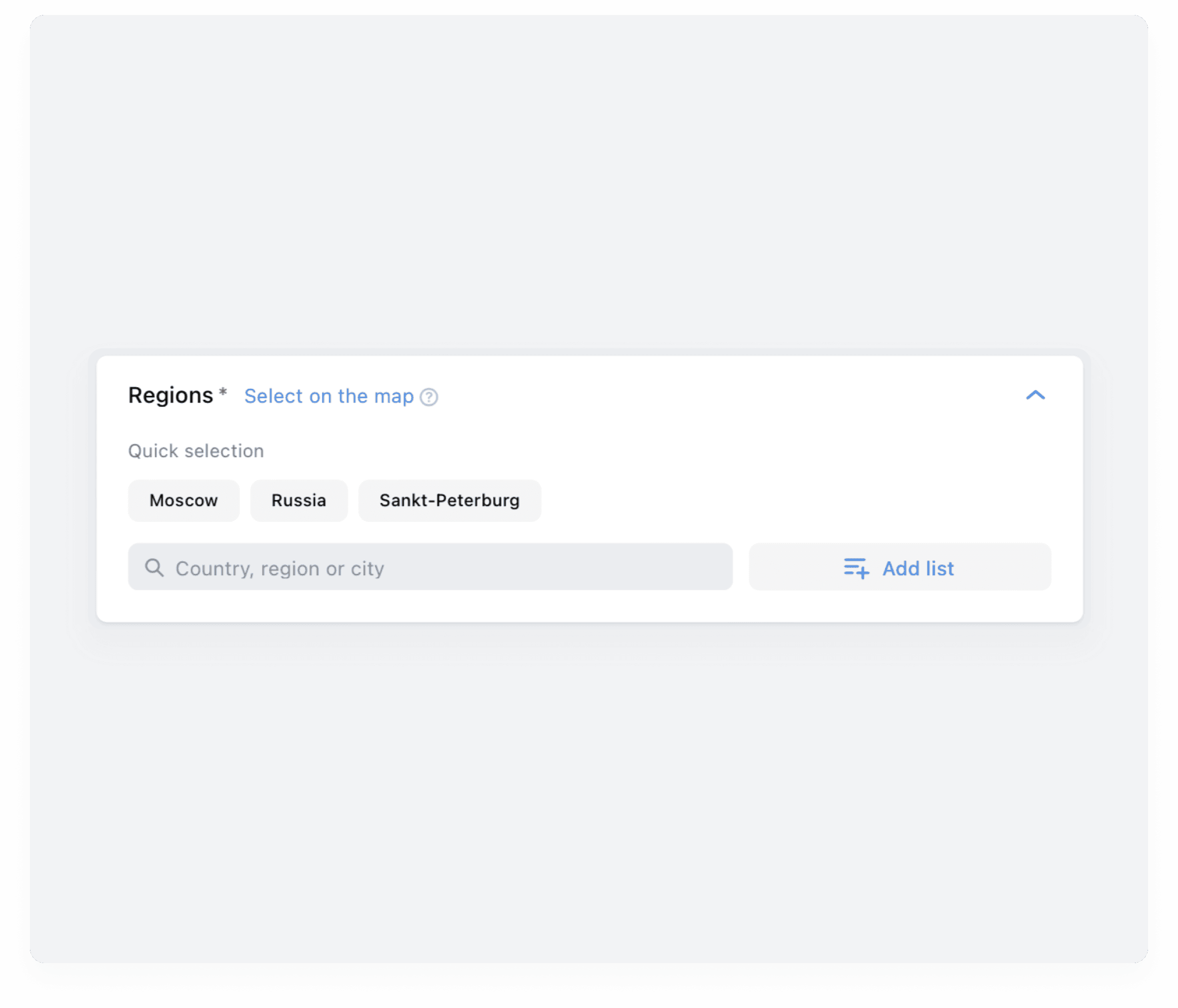
4. Regions. Here, you need to specify which regions your ads will be shown to. You can:
- find regions using the search bar or select them from the list,
- pinpoint them on the map,
- add a list of targeting regions manually or upload a list from a file.
You can read more about geographic targeting in the VK Ads Help.
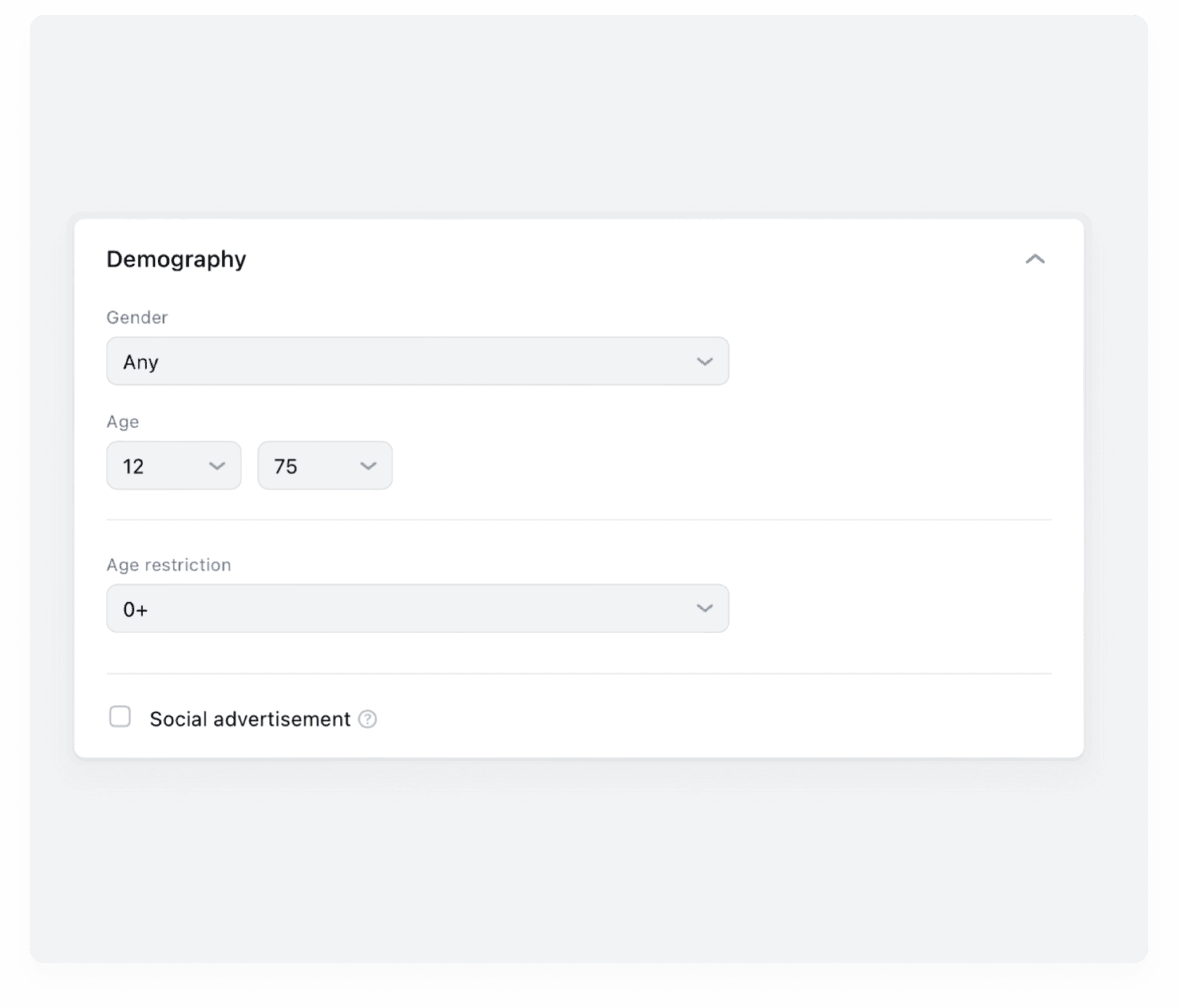
5. Demography. In this block, specify the gender and age of your target audience, as well as the age restriction.
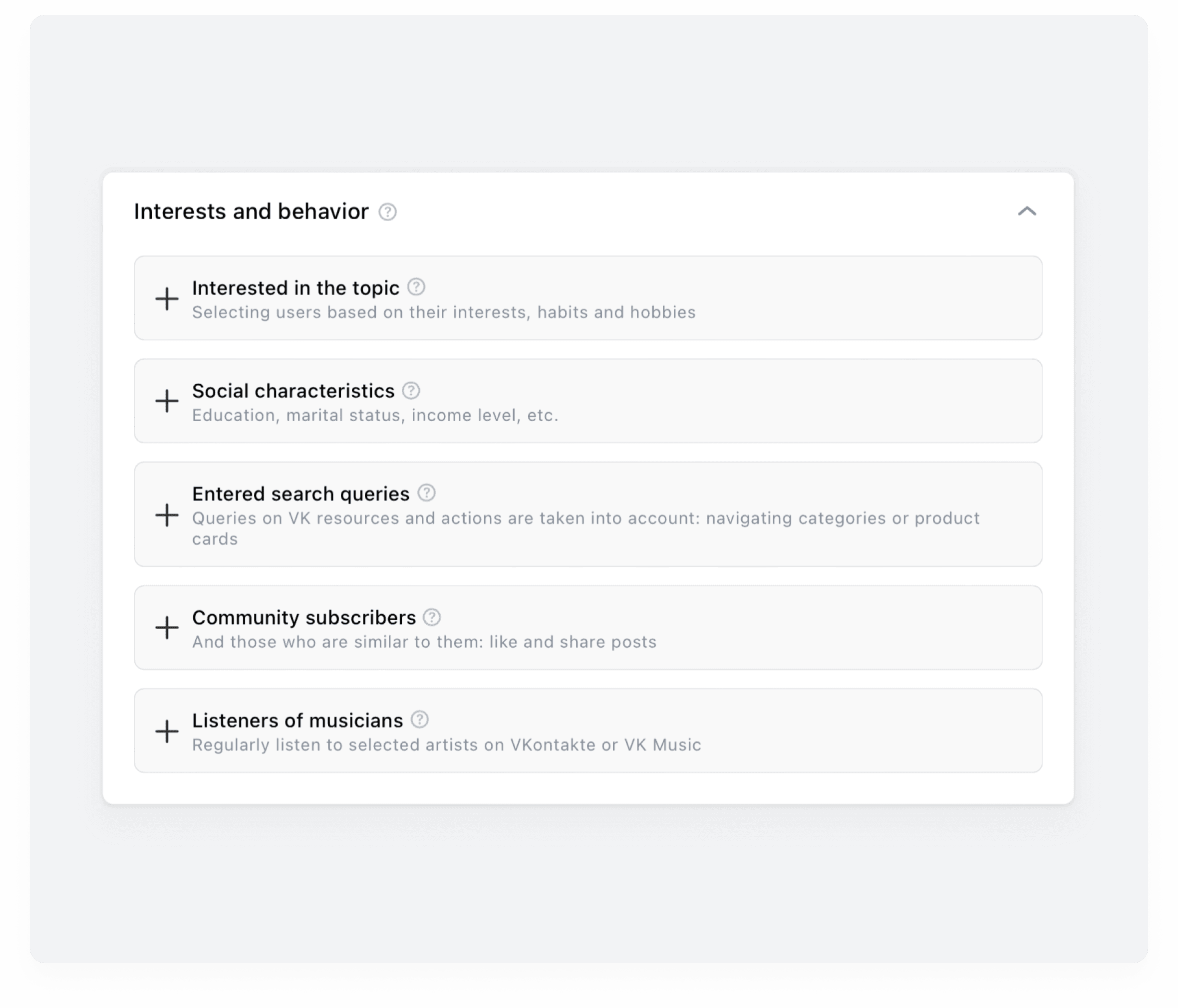
6. Interests and behavior includes targeting by interests, key phrases, communities, and musicians.
Interested in a topic — is a targeting option that helps you reach audiences based on the topics of search queries and content they've engaged with. In the VK Ads, you select interests from a dropdown list: it's quite detailed, so when you start typing a topic, the system will suggest available options, helping you pinpoint the most relevant one.
You can both include and exclude interests. If you exclude them, users who have shown interest in a certain topic won't see your ad. To do this, click "Add exclusions" and select the topic you want.
Social characteristics — this setting helps you find the right users based on an analysis of anonymized demographic and behavioral data from VK users (education, income level, marital status, and more).
Entered search queries — this targeting option allows you to show ads to users based on their search queries. It accounts for both direct searches across VK projects and other actions: browsing categories, viewing product cards, and so on.
In this block, you can specify:
- the key phrases (2–3 words),
- negative key phrases are also known as exclusion words. If they appear in users' queries and other actions, those users won't see your ad,
- search lookback period — the time window over which user queries should be taken into account, from 1 to 30 days.
Each key phrase should be entered on a new line. The system will suggest similar key phrases and show you the potential audience coverage. For your chosen key phrases to be applied in your ad, you need to gather an audience based on them. To do this, click the "Gather audience" button.
Community subscribers — this targeting option lets you serve ads to the audiences of specified VKontakte communities and OK groups.
You can find communities and groups using the search bar or add them as a list.
You can read more about community targeting in the VK Ads Help.
Listeners of musicians — this setting allows you to show ads to people who listen to specific musical artists.
- Enter the artist's name or band name in the search bar.
- Click "Done" to select the musician.
If you want to add multiple artists, repeat the steps above.
Click the "Create an audience" button so that your selected musicians are factored into your ads. The newly created audience will be automatically added to the "Custom audiences" block.
You can also create an audience in the "Audiences" section of your VK Ads account. For more details, see the VK Ads Help.
Important: We recommend using only one targeting category per ad group. This way, you'll be able to determine which specific tool performed more effectively.
7. Custom Audiences are user lists created based on various parameters. For example, if you specified key phrases above, an audience built from those key phrases will be automatically added to this block. If you've previously uploaded your own user lists to VK Ads (such as phone numbers, email addresses, or your customers' social media IDs), you can use them here. Audiences can be either included or excluded. For example, the latter option is useful when you don't want to show ads to your existing customers.
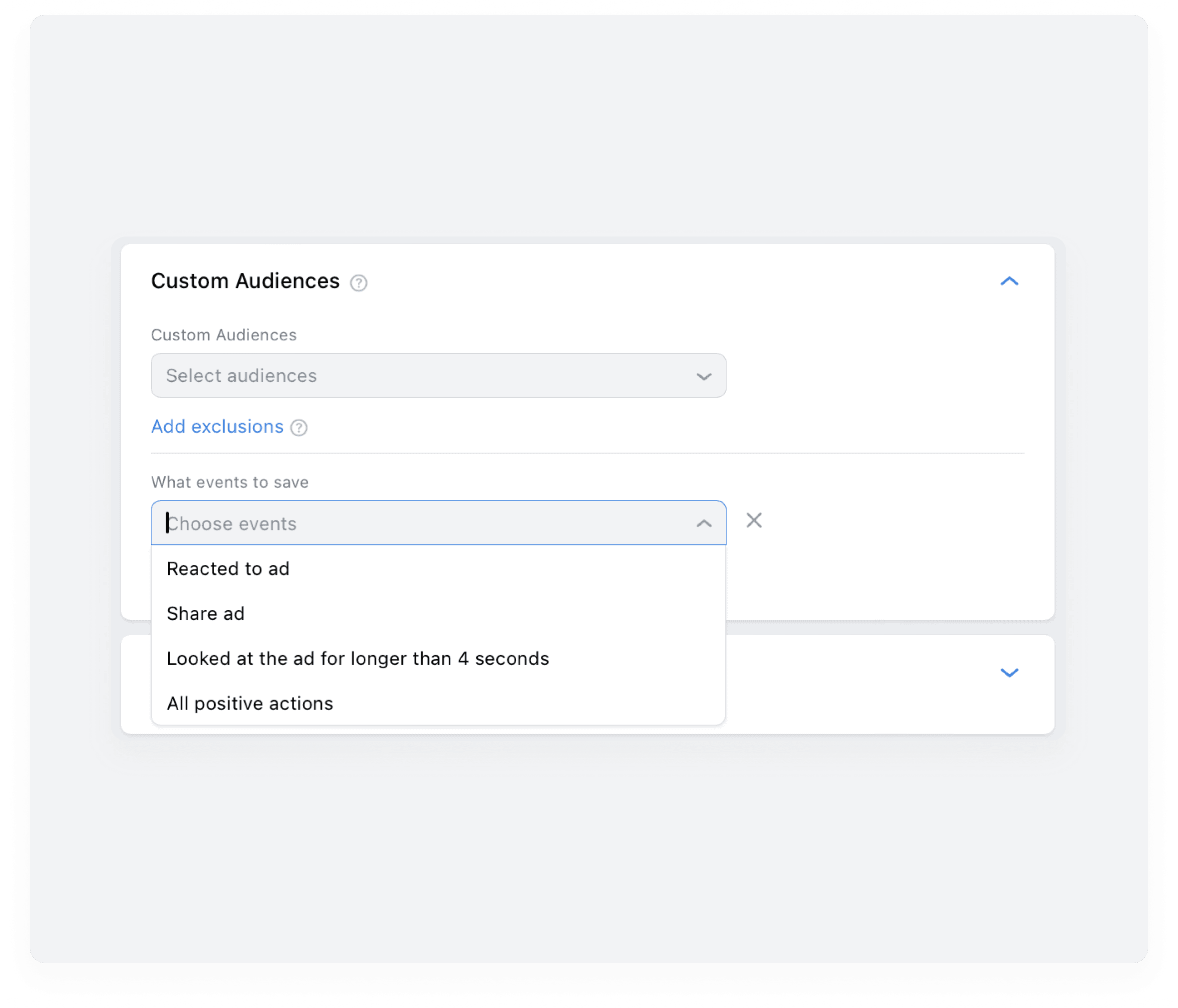
You can also build audiences based on events. To do this, click "Gather audiences" and select which actions you'd like to capture — for example, reaction to the ad, ad reposts, ad views longer than 4 seconds, or all positive actions.
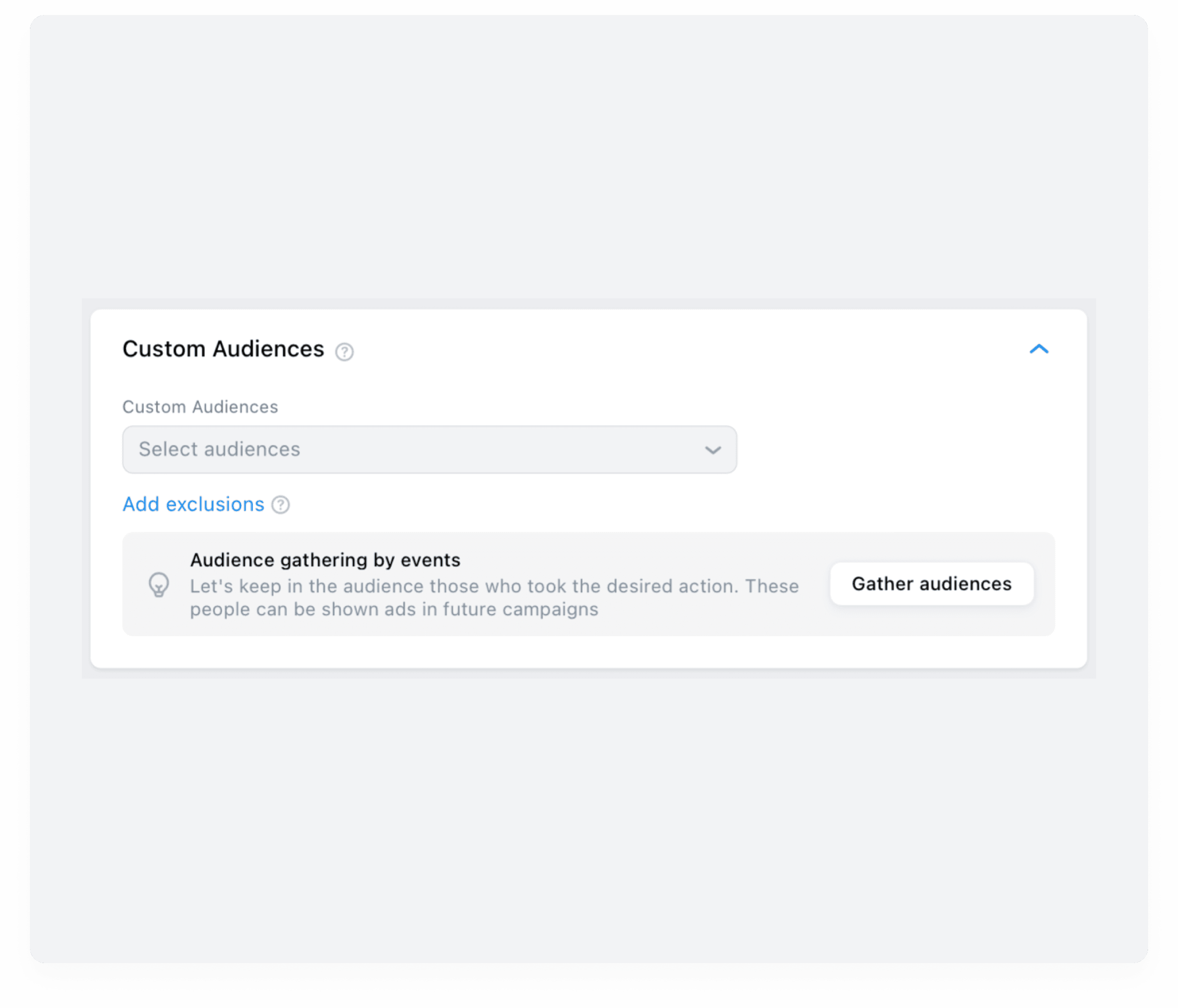
VK Ads will automatically generate a segment and save it to the "Audiences" section. This segment will continue to grow while your ads are running. In the future, you can leverage this segment in new campaigns – for example, to re-engage users who have already shown interest. You can also exclude this segment from future campaigns to reach new audiences. For more details on audiences, check out the VK Ads Help.
Events in an advertising campaign allow you to gather an audience of users who have performed the specific actions, so you can show them ads later on. The available ad events vary depending on your campaign type.
For instance, if you're promoting a community, music ("VK, OK, Mini Apps, Dzen, MAX"), or video content ("Post, video, clips, Dzen article"), you can gather an audience of users who have positively reacted on your ads – such as those who reacted to ad, shared your ad, looked at the ad for longerthan 4 seconds, or taken all positive actions.
How to set up an event-based audience during campaign creation:
1. At the ad group setup stage, click "Audiences" → "Gather audiences".
2. Select the events.
3. Specify which audience(s) the users should be added to (up to 10 audiences).
Choose "Add exclusions" to prevent your ads from being shown to people in selected audiences.
How to create an event-based audience after your campaign has already been set up:
- Go to "Audience" → "Create audience" → "Add source" → "Events in my ads".
- Select an ad group.
- Choose the events and click "Save".
You can also create an audience after your campaign has ended. Event data is retained for 60 days following the campaign's completion. Within that 60-day window after the end of the campaign, you can select it as a source for building a new audience.
8. Placements are the platforms where your ads will be shown. By default, VK Ads selects them automatically. We recommend keeping this setting to reach the maximum number of relevant users.
Your ad placement choices directly affect the audience reach forecast, which is displayed on the right-hand side of the screen. If you manually adjust placements or add new targeting options, the forecast will update accordingly.
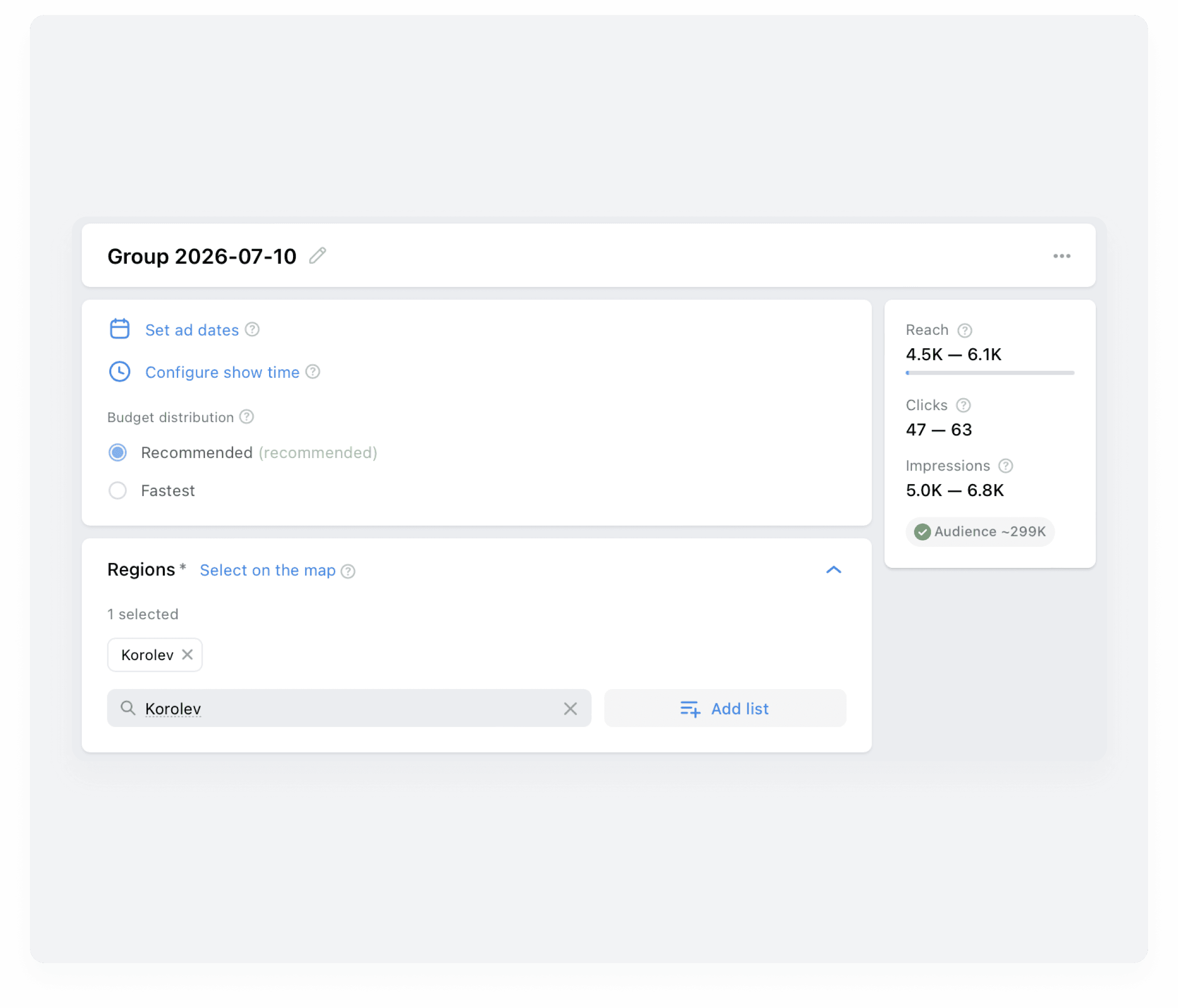
Your ad group-tier settings are now complete. If you'd like to add multiple ad groups to a single campaign, you have two options:
- Duplicate the ad group. This works well if your targeting in the new group will partially overlap with the previous one. To do this, click the three dots next to the group name and select "Copy group".
- Create a new group. Choose this option if your targeting settings in the new group will differ significantly from the previous one. To do this, click "Add new group" at the bottom of the page.
Once everything is ready, click "Continue". You'll then move on to the ad-level setup.
Ad setup
At this stage, you'll need to create a description for your ad. It should meet the following requirements:
- Up to 220 characters, including spaces.
- Emojis and all-caps text are not allowed.
The "Video" section will display the videos or live streams you specified during the campaign setup stage.
A preview block is available on the right-hand side: you can see how your ad will look to users. When everything is ready, make sure VK Ads is not showing any warnings. Then click the "Publish" button — your campaign will be submitted for moderation.
After the launch, you'll be able to view statistics and track your ad performance.
Analyzing results
To track the performance of your videos and live streams:
- In your VK Ads account, go to "Campaigns".
- Find the campaign, ad group, or ad you need by name. For convenience, use the search bar or filters.
- Review the stats. There's no universal benchmark for what constitutes "good" results – it all depends on your niche, video content and its length, audience, and other factors. Generally, the shorter the video, the higher the completion rate (up to 100%) you can expect.
The following video view metrics are available to you:
- Video started — the number of users who started watching the video.
- 10s viewed — the number of views that lasted 10 seconds.
- 25%, 50%, 75%, 100% viewed — the number of views of the video or live stream at each respective quartile (25%, 50%, 75%, or 100%).
- Clicks. The number of clicks on the live stream or video.
- Impressions. The number of times the ad was displayed on a user's screen.
- eCPM. Cost per 1,000 impressions.
- CTR. The ratio (as a percentage) of clicks to impressions.
- CR. The ratio of conversions for the ad to clicks, multiplied by 100%.
- eCPC. Effective cost per click.
- Results. The number of target actions. Since only one target action (video views) can be configured for videos and live streams, the stats will display the number of views.
- Price for results. Cost per view.
- Total spent. The total amount spent on the ad campaign.
FAQ
- Who is video content promotion in VK Ads suitable for?
Promoting videos and live streams in VK Ads is suitable for bloggers, streamers, business owners, and experts who publish unique content in their VKontakte community.
- How does promoting videos and live streams in VK Ads benefit businesses and creators?
Video and live stream ads allow you to reach a new audience potentially interested in your community's niche, attract new followers, and boost engagement among your existing ones.
- What targeting options are available in VK Ads?
In VK Ads, you can configure settings by geographic regions, demographics, interests and behavior, as well as build custom audiences and choose placements for your ads.
- Which metrics can you use to evaluate campaigns in VK Ads?
VK Ads provides statistics on video starts, 10-second views, view-through rates by quartile, clicks, impressions, CTR, CR, eCPC, cost per view and total views, as well as total spend on promoting a video or live stream.
Conclusion
- To promote videos in VK Ads, you need to set up a campaign, an ad group, and ads.
- Currently, there is one goal action available for videos and live streams: "Ad Impressions." The following bidding strategies are available for promoting videos and live streams: "Second price mean", "Limit price" and "Fix price".
- With a variety of targeting options, you can customize your ads to find your target audience.
- VK Ads provides statistics on video starts, 10-second views, view-through rates by quartile, clicks, impressions, CTR, CR, eCPC, cost per view and total views, as well as total spend on promoting a video or live stream.
Contents