To increase sales and reach, sellers who place products on Wildberries can use not only the tools of the marketplace, but also external channels, including VK services. You can promote products using targeted advertising, communities and groups on social networks, videos, clips, Dzen channels, and blogger integrations.
In the article, the PromoPult team shares an overview of VK projects that are suitable for advertising products from marketplaces, and step-by-step instructions for promoting the product catalog in VK Ads.
Which VK projects are suitable for Wildberries products advertising
Let's take a look at the platforms and services that can benefit businesses across various industries.
Free promotion methods
VKontakte and Odnoklassniki
On these social networks, you can create a community or group dedicated to your store. Publish content about new arrivals, promotions, and discounts, share product photos and video reviews, and host live streams showcasing your product range. It's also a great way to stay connected with both potential and existing customers. It's free, but it does require time to grow an audience, produce content, and keep your community active.
VK Clips and VK Video
Platforms for posting reviews, unboxings, and creative product videos. Create content that has the potential to go viral by tapping into current trends. You can start with Clips — short videos up to 3 minutes long. The optimal length of this type of video is 30-60 seconds, which is enough to quickly showcase the product and keep the attention of users who scroll through the feed quickly. If the video gets a good reach, you can attract a broad audience and attract potential customers.
Dzen
On Dzen, you can create a channel and drive organic traffic by choosing or mixing the content formats that resonate most with your audience. For example, articles are suitable for talking about products and making collections, videos work well for reviews and unboxings, and posts are ideal for announcing new arrivals and promotions.
Published articles can be promoted using VK Ads: targeting will help you find the right audience, and Scroll-to-site seamless transition technology will guide customers to the product page or store on the marketplace.
The combination of free and paid tools in Zen helps sellers increase their reach and attract potential customers.
Paid promotion methods
VK AdBlogger
VK AdBlogger is a platform for cooperation between bloggers and advertisers. With its help, you can advertise with bloggers and in VKontakte communities. You can select suitable sites based on the number of subscribers, subject, coverage, cost of advertising, and other parameters. Bloggers can create posts, videos, or clips showcasing your products and dropping direct links to them. This approach helps you reach the right audience and build trust through personal recommendations.
VK Ads
VK Ads is a single platform for quickly launching campaigns on VK projects and on the advertising network. To advertise products from marketplaces, there is a special promotion object "Product Catalog" → "Marketplace store".
To launch the promotion, it is enough to specify a link to the store and an API key for automatically importing the product catalog into VK Advertising. The information will be updated automatically: sold-out items will disappear from the advertisement, and new ones will be added.
When setting up a campaign, you can specify targeting by interests, communities, search queries, and other parameters. Dynamic retargeting is available to serve ads to a "warm" audience that has already interacted with your ads.
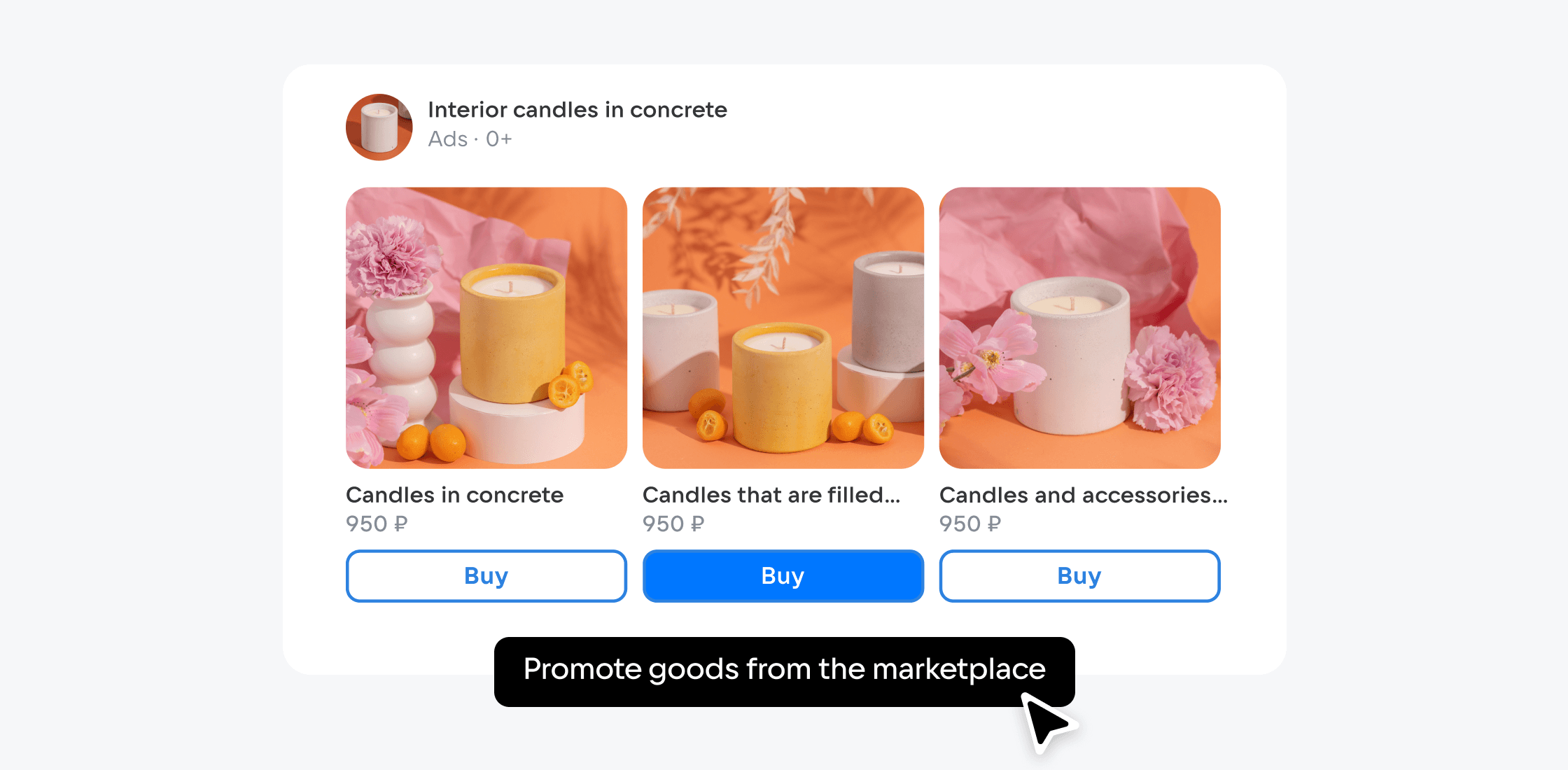
The system automatically selects the right ad format depending on where your ad appears, with product cards seamlessly blending into the page content. For instance, a banner might feature a single product, while a carousel can showcase several at once. Clicking on an ad takes the user directly to the product page on the marketplace, where they can complete the purchase.
Here's a step-by-step guide on setting up your ad campaign.
How to set up a VK Ads campaign to promote products from Wildberries
Catalog creating
Open the VK Ads account → go to the "Commercial Center" → click "Create catalog" → select "Marketplace".
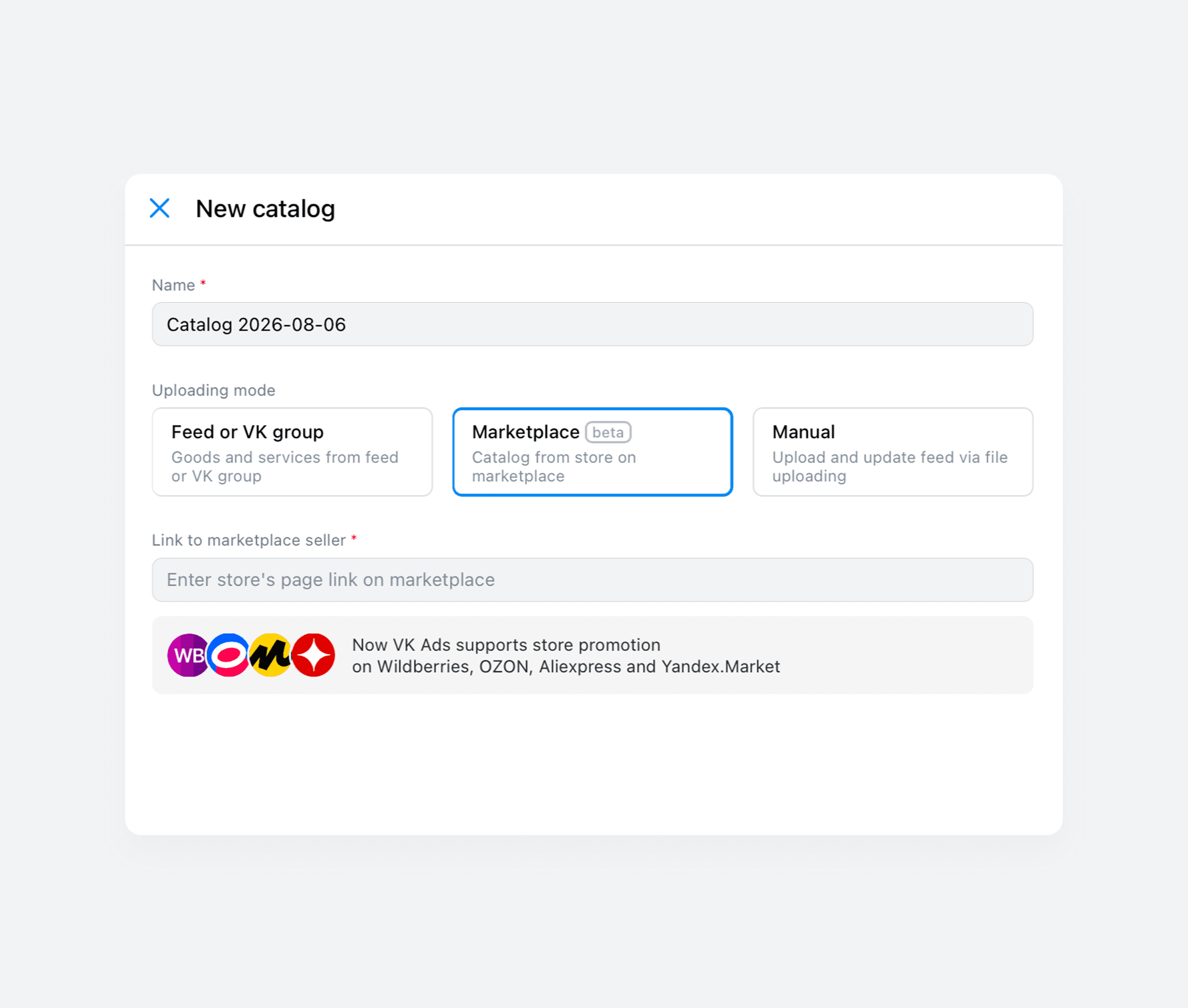
Give your catalog a name, add the link to your seller page, and enter your API key — you'll find it in your Wildberries seller dashboard. Step-by-step guide →
When generating the token in your seller dashboard, make sure the "Prices," "Content," and "Statistics" categories are enabled. The key is what powers the automatic import and updating of product cards within VK Ads. Once connected via API, the system will automatically refresh descriptions and pricing, pull sold-out items from your campaign, and add any new product cards that appear in your store.
Next, choose your catalog refresh interval (every 1 hour, 4 hours, 8 hours, or daily) and click "Create Catalog." The process typically takes no more than 10 minutes.
After that, you're ready to move on to creating your ad campaign to start promoting your products.
Campaign set up
Go to the Campaigns section → click the Create button. In the "Target actions" section, select the "Product catalog" as an advertised object → "Marketplace shop".
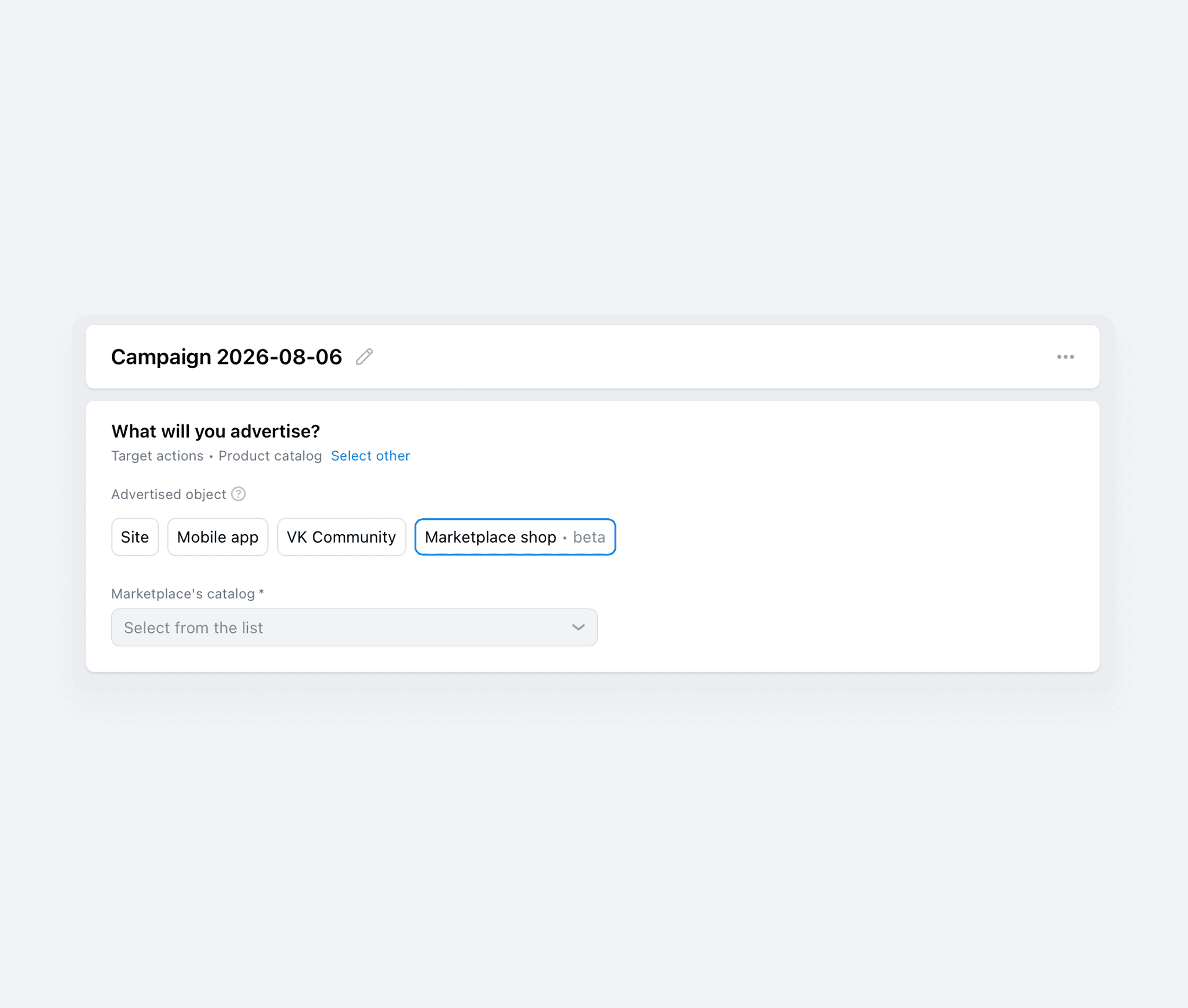
Select the catalog you need from the dropdown menu. If you'd like to create a new one, click "Add marketplace shop catalog".
Next, choose your campaign type:
- New clients acquisition is suitable for those who are promoting products with Wildberries through VK Ads for the first time. The system will collect the first statistics and data that you can use for retargeting in the future. Therefore, it is worth choosing this type of campaign for the first launch — VK Ads does not have access to events inside marketplaces, clicks on products during the display of ads are available for retargeting.
- Dynamic retargeting is appropriate for those who have already promoted products in VK Ads and have accumulated statistics on clicks. The system will show ads to those who have already interacted with your products ads. Learn more about dynamic retargeting →
Next, select the target action you need from the list and the appropriate bidding strategy:
- Min price. The algorithm aims to drive as many conversions as possible within your set budget. For example, with a daily budget of ₽700, the system will optimize delivery to get the most conversions without exceeding that amount.
- Limit price. Here, you specify both a budget and a maximum cost per conversion. The system will try to deliver conversions without going over that cost, though it doesn't guarantee it. This strategy is best used when you've run campaigns before and have a sense of the average cost per lead in your niche.
The next step is budget optimization. This is a recommended setting, and we suggest leaving it enabled. It allows VK Ads' algorithms to distribute your budget across ad groups in a way that drives more conversions. If you turn off campaign-level budget optimization, you'll need to choose a bidding strategy and set a budget when configuring individual ad groups.
Next, specify the total or daily budget and campaign dates. If it is important to you that the funds are distributed evenly over the days, choose a daily budget.
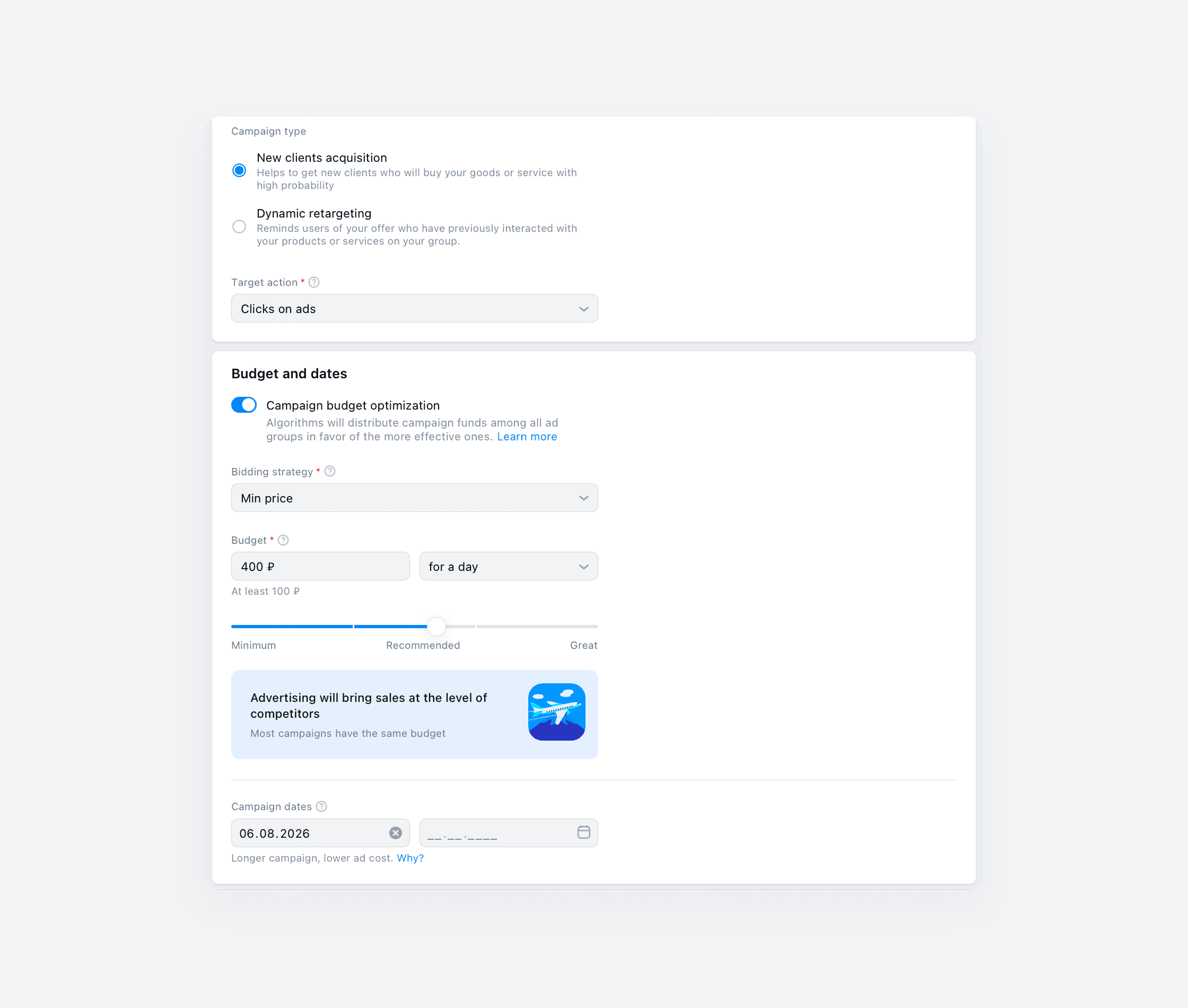
When everything is ready, click "Continue". You will proceed to create ad groups.
Ad group set up
1. Name your ad group and configure its show time. The schedule must fall within the overall campaign timeframe. For example, your entire campaign might run from May 15 to May 30, while an individual ad group within it could be scheduled from May 20 to May 28.
2. Select the products you want to promote. By default, your entire catalog will be selected, but you can apply filters or handpick individual items by clicking the plus icon.
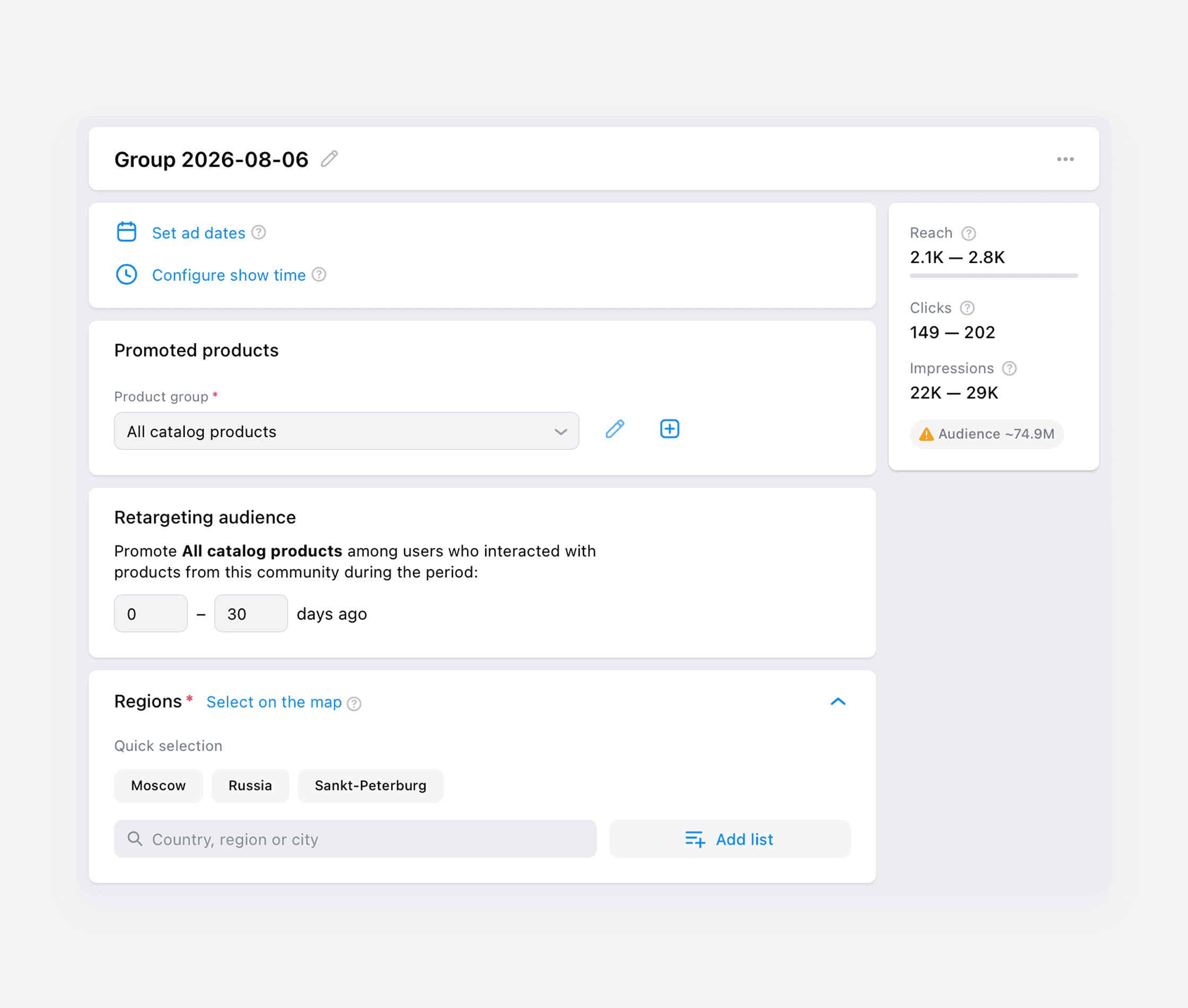
If you selected "New clients acquisition" as your campaign type, you'll move on to the "Regions" targeting step after this. If you chose "Dynamic retargeting," you'll need to specify a period from 0 to 365 days. Your ads will then be shown to people who clicked on ads featuring products from the catalog you're promoting within that timeframe.
3. Define the regions where your ads will run. You can select them one by one, add them as a list, or pinpoint them directly on the map.
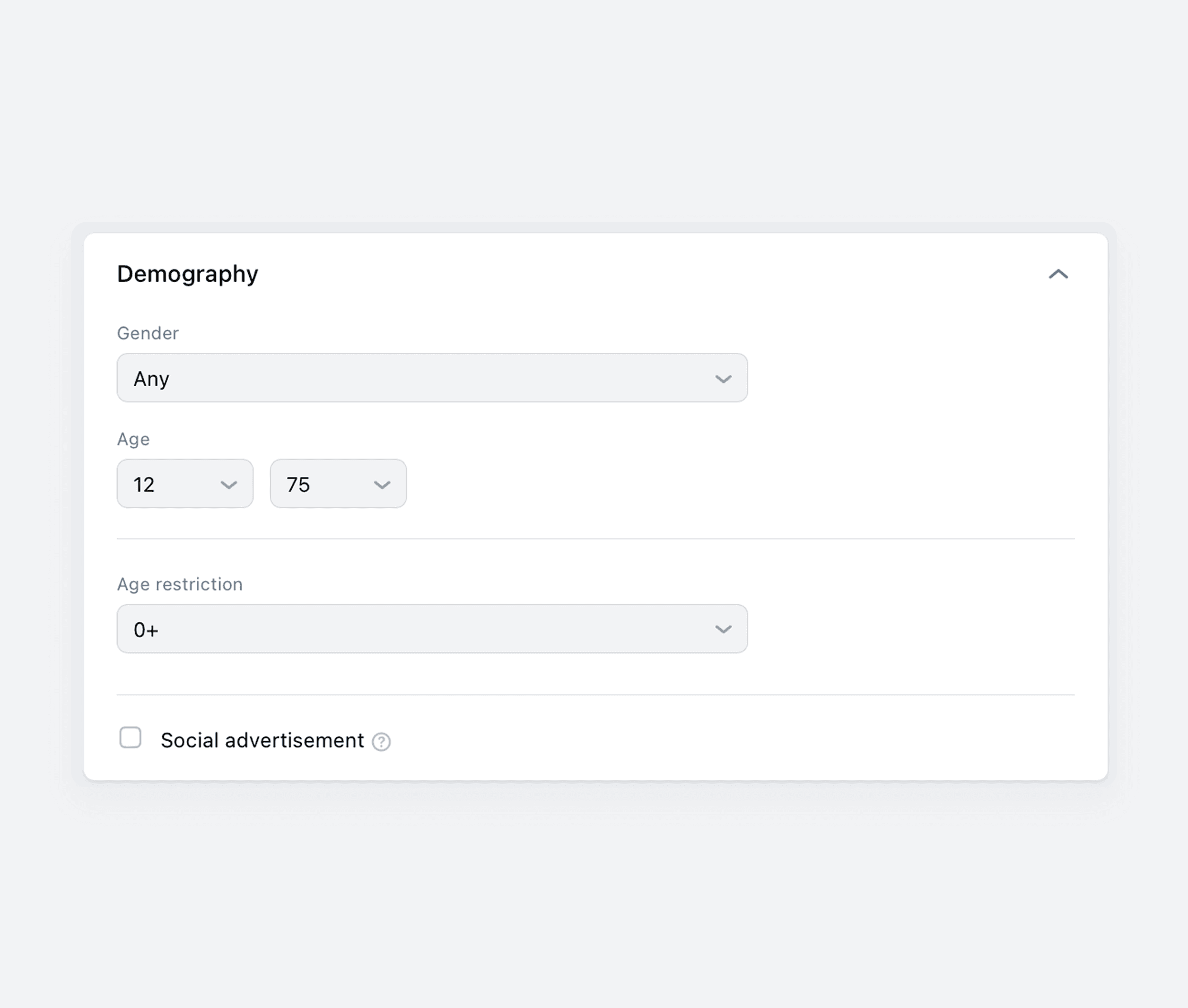
4. Specify the age and gender of the target audience, and add age restriction if necessary.
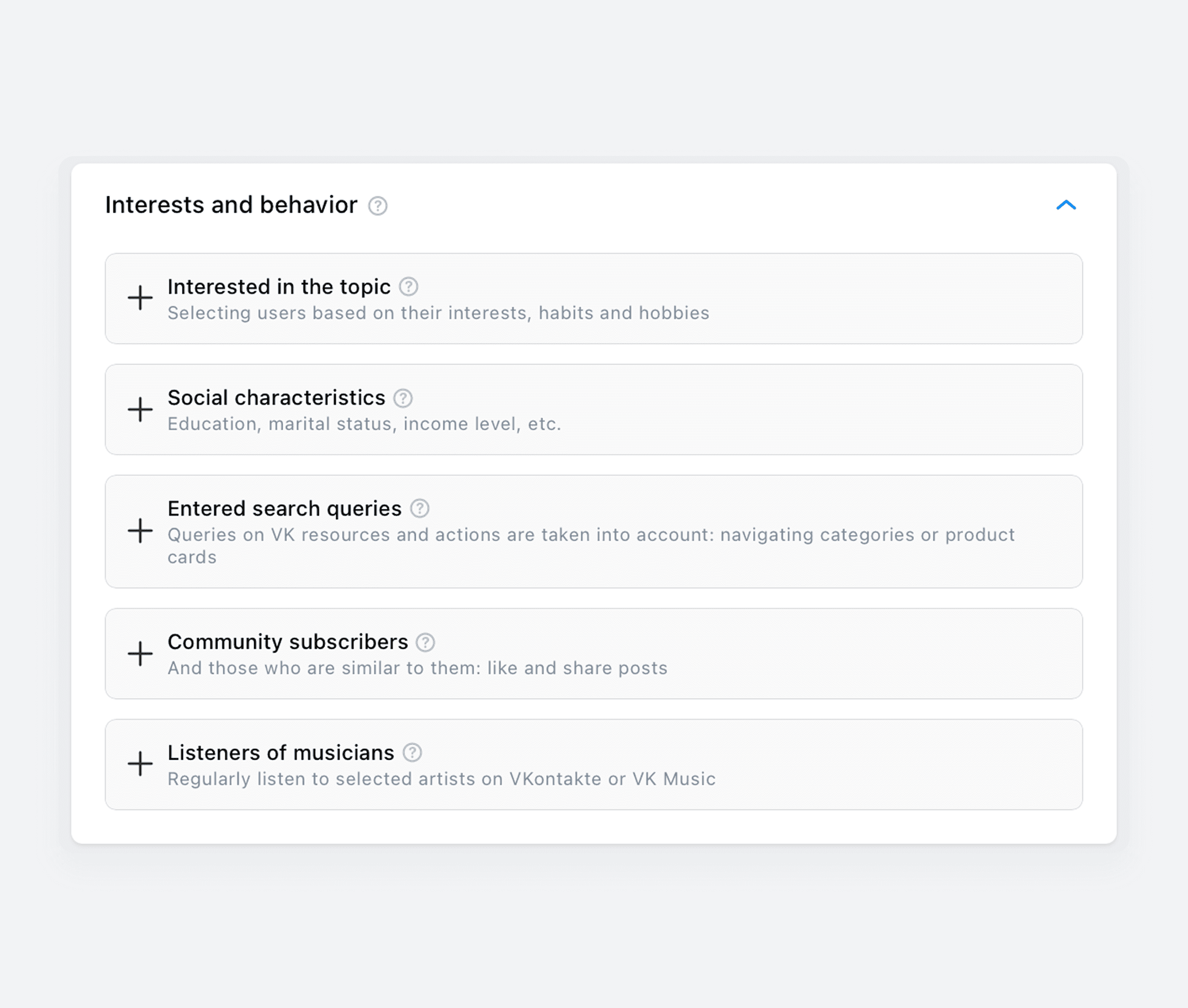
5. Set up targeting in the "Interests and behavior" section. These are the settings that will determine your target audience. For example, you can specify interests or search queries that the audience can use to search for your products. You can find out more about each targeting in the VK Ads Help.
For one ad group, you should choose one targeting from this block — that way, you can clearly see which tool performed best. If you want to test multiple targeting from the "Interests and behavior" block within the same campaign, create several ad groups.
6. If needed, you can add custom audiences — these are user lists created based on various parameters. For example, if you've specified key phrases, an audience will be automatically added to this block. You can also use any of your own user lists that you've previously uploaded to VK Ads. Audiences can be either included or excluded. If you need to create a new audience, you can do so in the "Audiences" section. Detailed guide →
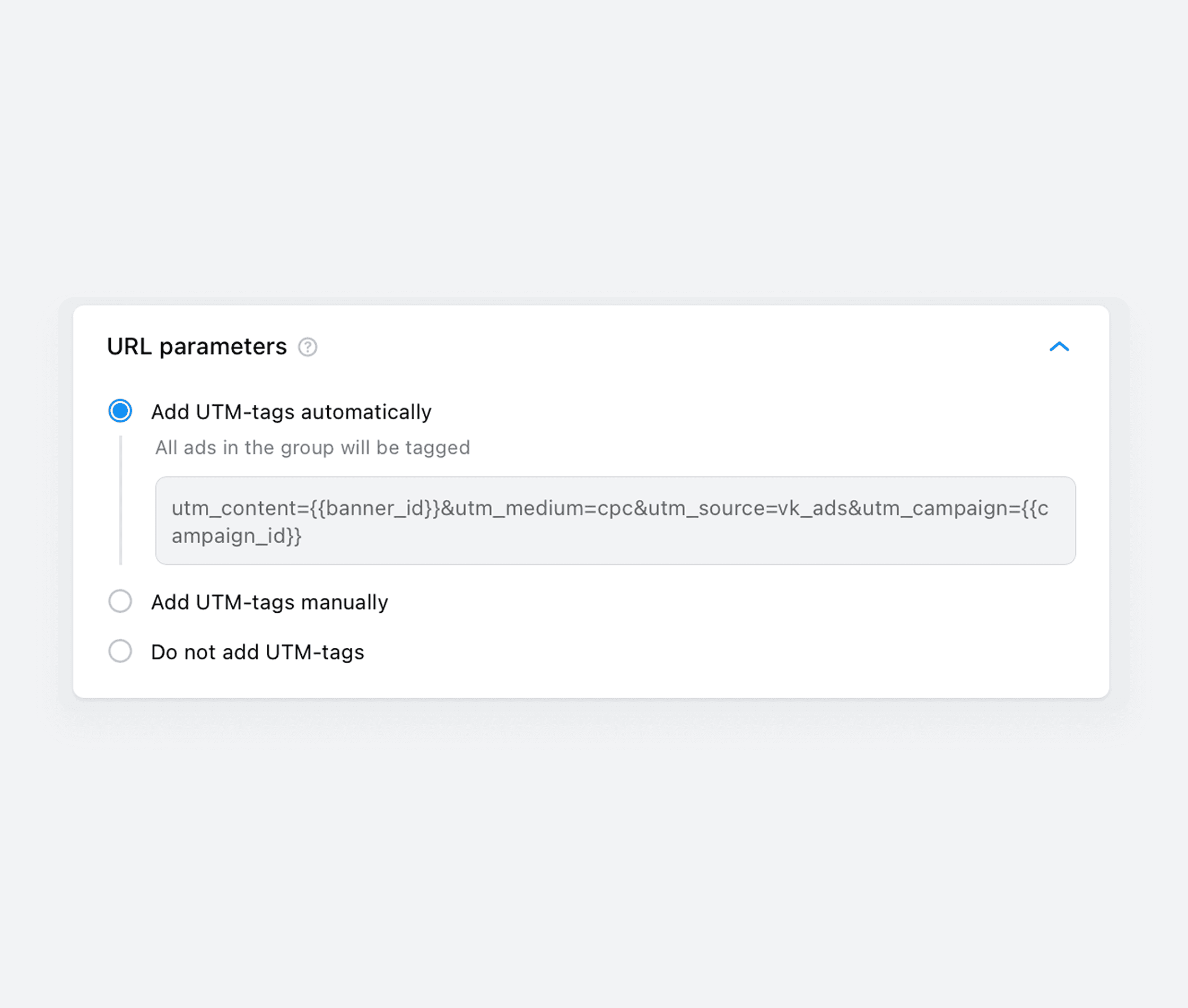
7. Add UTM tags according to the template to track traffic efficiency. Statistics on the number of clicks and impressions will be available in the VK Ads account, and sales information can be viewed in the seller's personal account on Wildberries. You can find the template in the "URL Parameters" block in the VK Ads account or in the VK Ads Help.
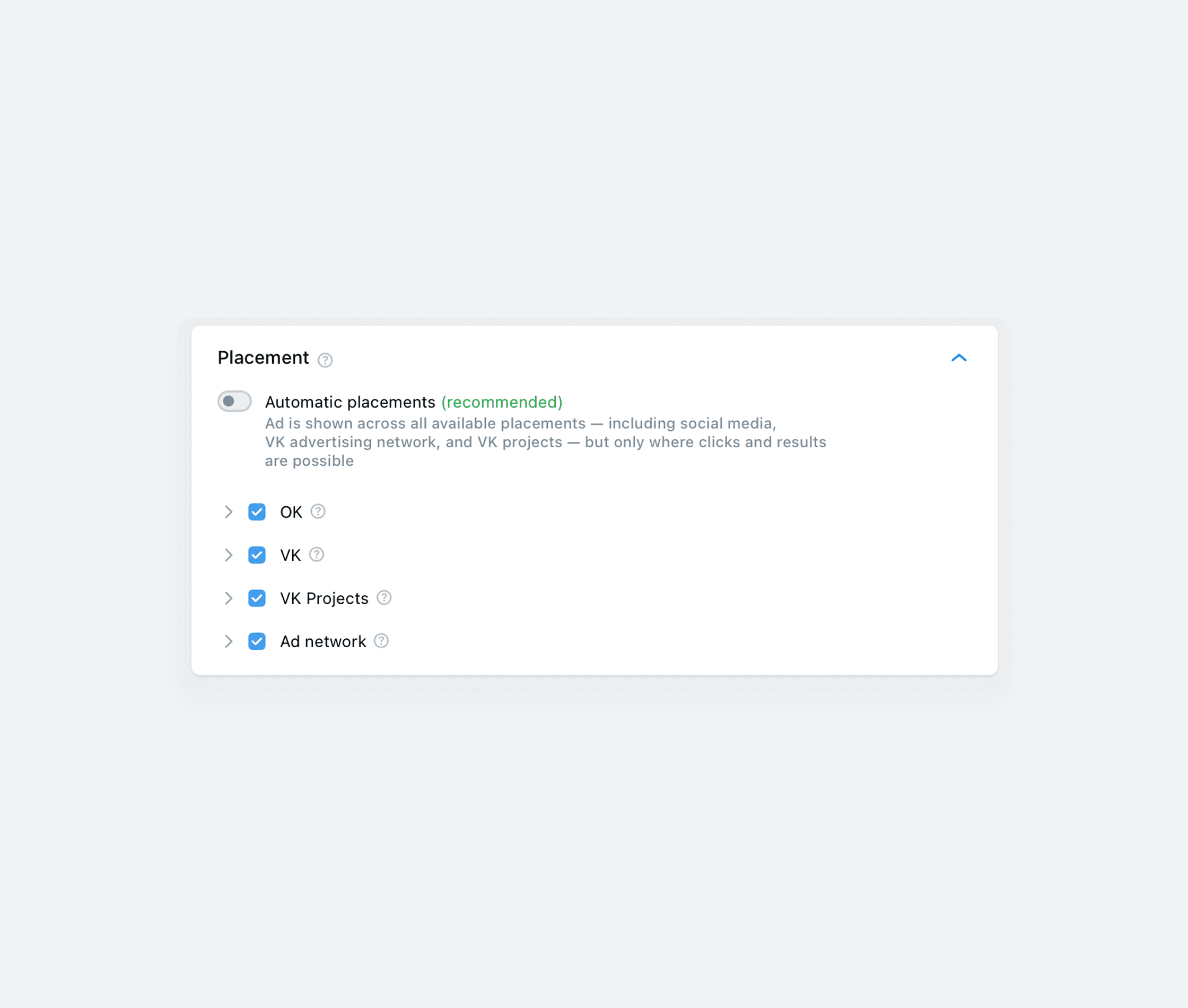
8. Specify the ad placements. Automatic selection is enabled by default. This setting allows you to reach the maximum number of target users. If you want to specify the locations manually, disable auto mode and tick the appropriate check-boxes.
9. On the right side of the screen, you'll see the estimated target audience size. It updates dynamically — every time you add new settings, the number adjusts.
10. If you want to add another ad set to this campaign, click "Add new ad group" at the bottom of the page. When everything looks good, hit "Continue".
Ads creating
At this level, you add all the elements that will make up the ad:
- Company logo.
- Ad title (up to 25 characters with spaces). You can create it using a neural network — to do this, click on the AI icon on the right side of the “Title” field.
- Banner description (up to 135 characters with spaces). Here you can use macros — dynamic parameters (for example, the product name and price).
- Product carousel description (up to 50 characters with spaces).
- Full description (up to 220 characters with spaces). It will be displayed in the feeds of VKontakte and Odnoklassniki.
- Link to the store on the marketplace.
- The text on the button; you select it from the drop‑down list.
- Media files. You can upload a video to this field to use the “Products in an advertising video” format.
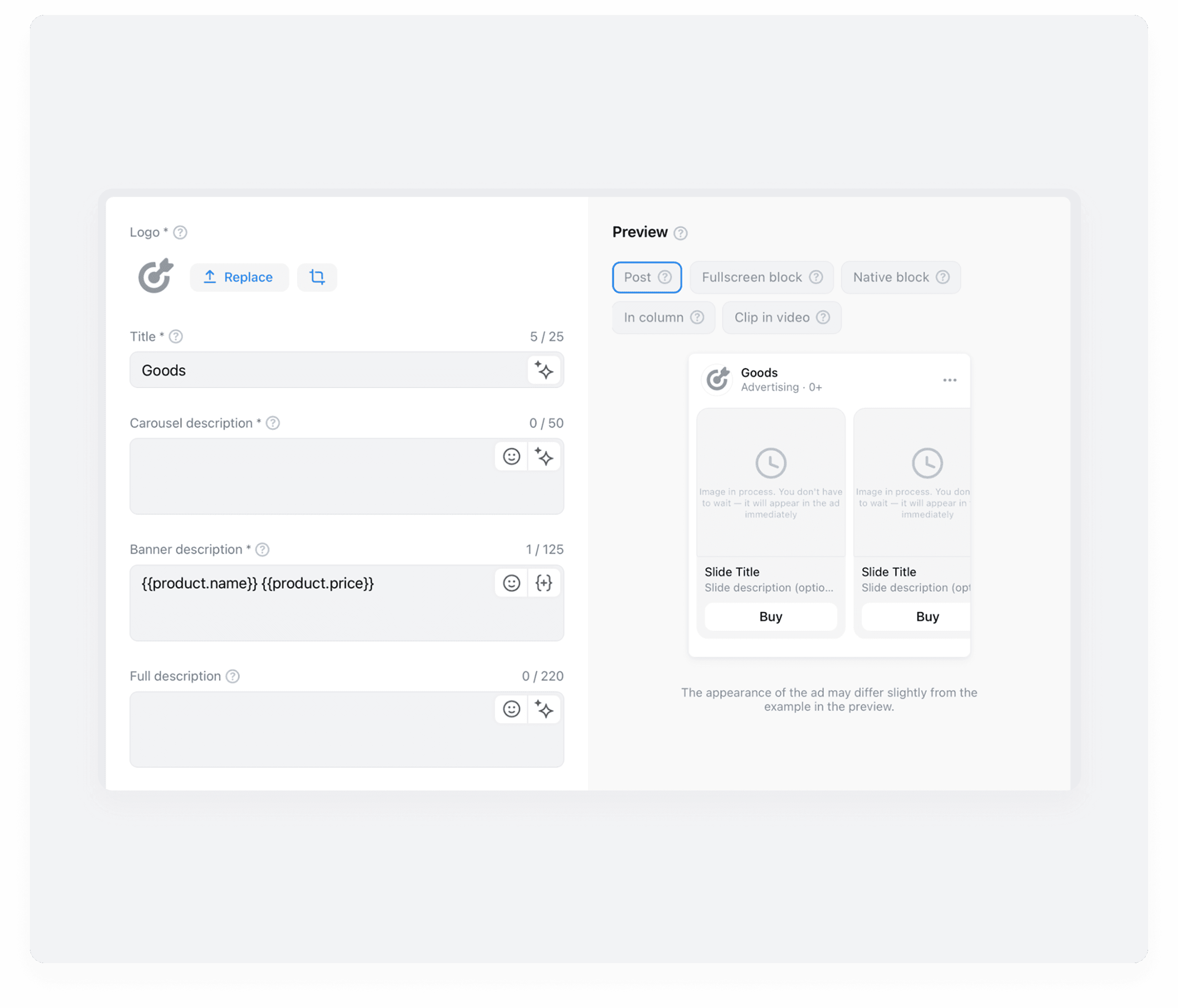
After that, move on to the product card elements. Add the following:
- Product card title. By default, a dynamic parameter with your product name is used. If needed, you can write your own text or choose a different macro.
- Product card description. There are two options to choose from: "New price and old price both" and "Custom description". If you go with "New price and old price both", dynamic parameters with the new and old prices from your product feed will be automatically added to the field. If you choose "Custom description", you can create your own text or use one of the available dynamic parameters.
- Intro slide for the carousel. You can add one if you like — it will appear first in the carousel, before your products. For example, you might use it to showcase a product collection. The intro slide requires an image, a title, a description, and a link (which could lead to your store or a specific product category, for instance).
When everything is ready, review your ad using the preview on the right side of the screen. If you want to add multiple ads, click the "Add new ad" button at the bottom of the page.
After that, you can either submit your campaign for moderation (hit "Publish") or save it as a draft if you'd like to come back and fine-tune your ad settings later (click "Save draft").
Conclusion
- Get your product cards ready for promotion. Fill in the descriptions and specifications, upload photos and videos, and check your reviews. Take a look at what sets your product apart from the competition and lean hard into your unique selling points.
- Define your audience. Who are your potential buyers? What do they do? What problem or need does your product solve for them?
- Decide on your promotion strategy. You can mix and match several approaches — for example, running ads through VK Ads and partnering with influencers. Get your ad content ready to go.
- Set up your analytics. Add UTM tags to your ad links so you can track how well your incoming traffic is performing.
- Launch your promotion and start gathering data. As you gather information about the traffic, adjust your targeting if necessary. When working with influencers or communities, take note of which channels are delivering results, analyze their audiences, and look for similar segments to tap into.
- Scale up successful advertising campaigns and add new promotion channels.
Contents