This format is similar to the “Universal Entry” in the VKontakte advertising account
The Universal Post is a new format currently in beta mode. Its location in the dashboard or name may change in the future, and we'll notify you directly in the interface.
This format allows you to advertise products or services as a post on behalf of a community. You can promote a post from within the community or create a hidden post if you don't want it to appear in the community.
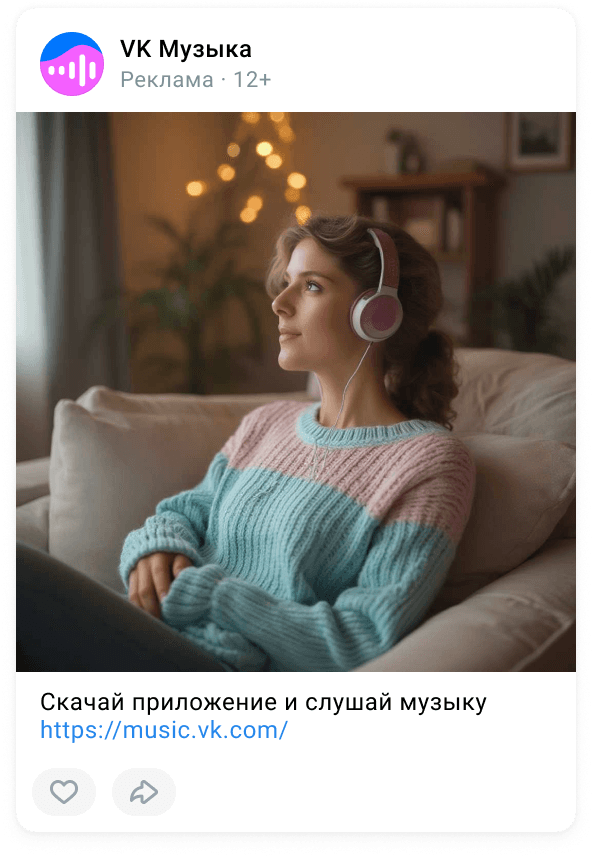
What is the difference between a hidden post and a regular post
A hidden post on VKontakte is a post created in your advertising account. It won't appear on the community wall, but will be natively integrated into the user's feed after you launch an ad for it. You can add one or more links to the post, making it a versatile tool for promoting products or services.
A regular post on VKontakte is a post created within the community and posted on its behalf. It is visible to all users. You can also advertise such a post from the "Awareness and Reach" tab. Learn more about launching media ads for a post
How to create a universal post
There are several ways to create a universal record:
Through the banner
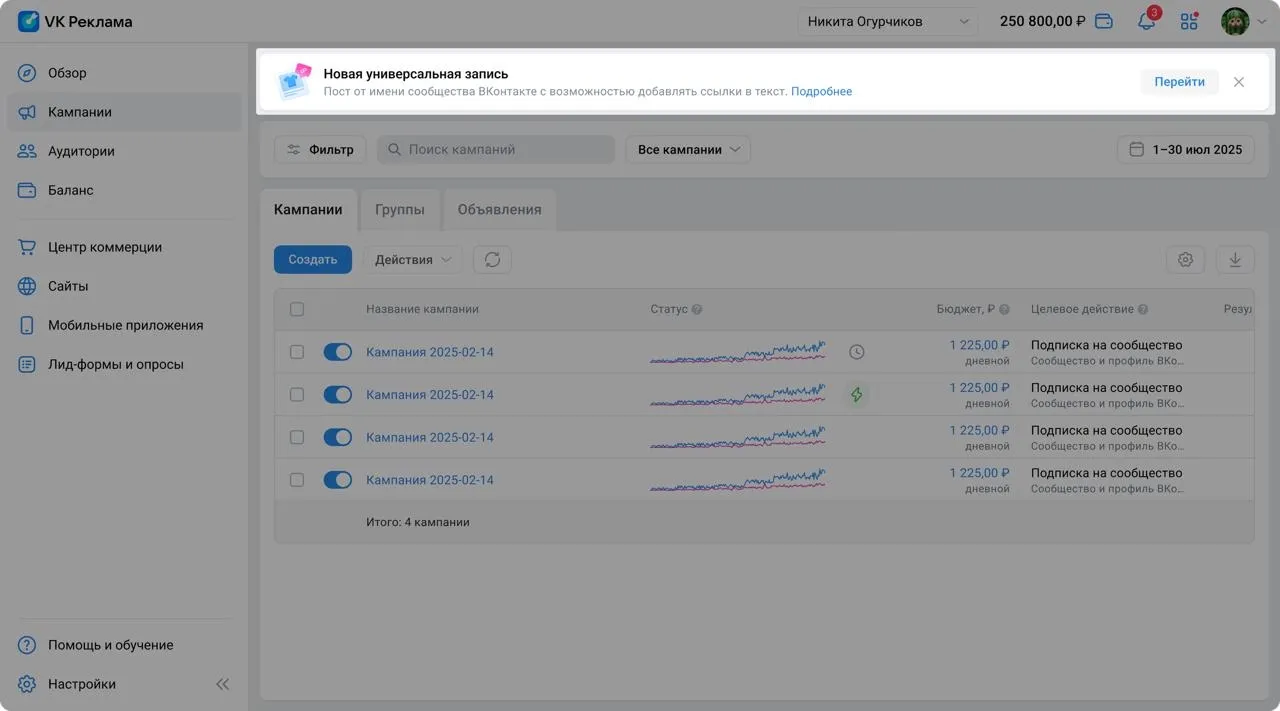
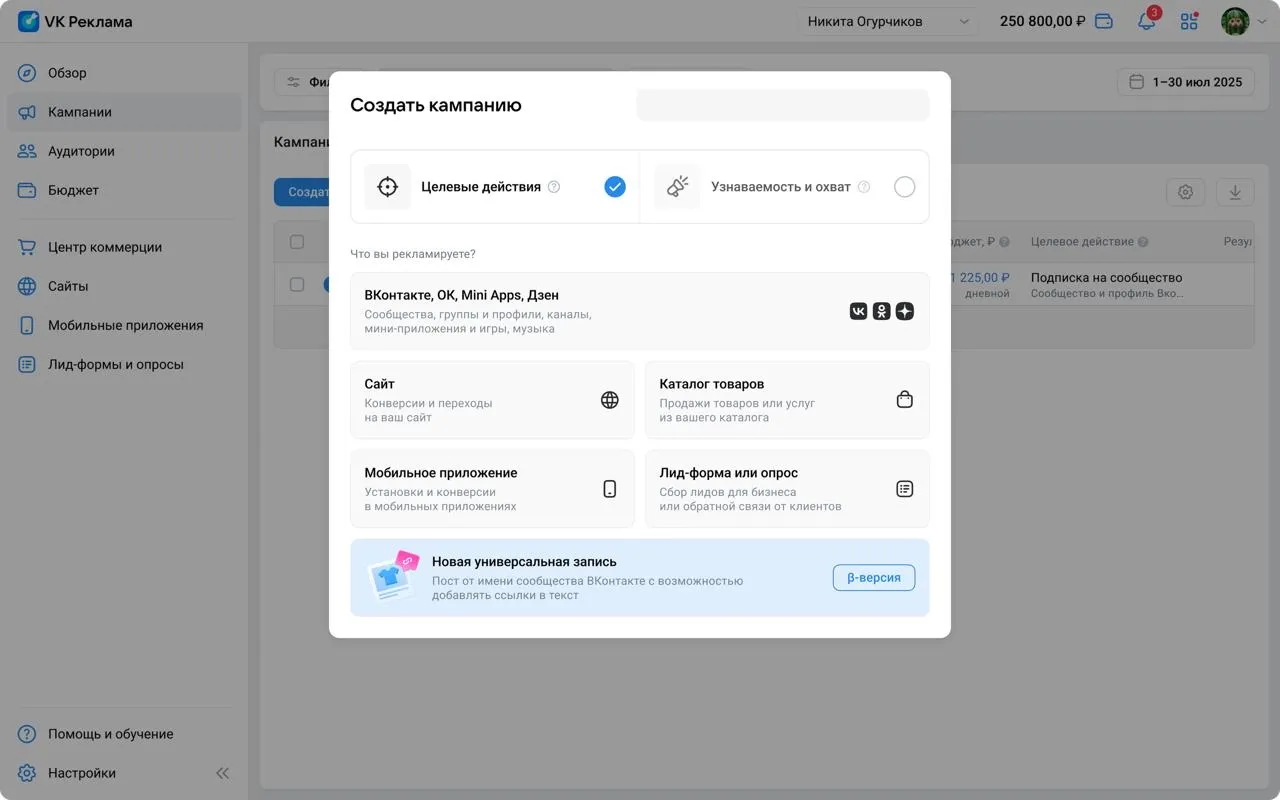
- Open the "Campaigns" section → click the "Go" button on the "New Universal Post" banner. A banner for creating a universal post will also appear in the "Campaigns" section when you click the "Create" button. To continue, click the "New Universal Post" banner.
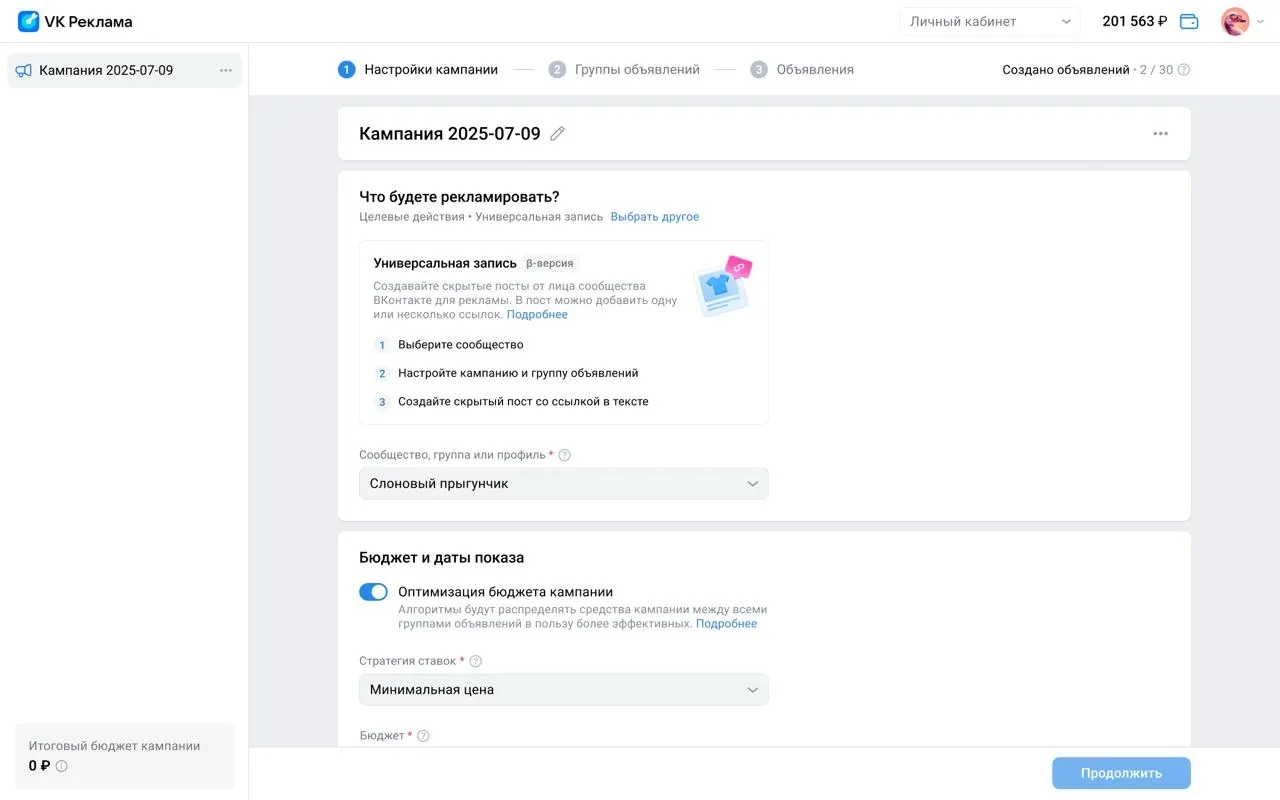
- Select the community you'll be promoting.
- Configure the campaign and ad group as usual.
- Click the "Create Hidden Post" button.
- After creating the post, return to your dashboard and select the post you just created. If the post doesn't appear in the list, click the refresh button.
- Click the "Publish" button.
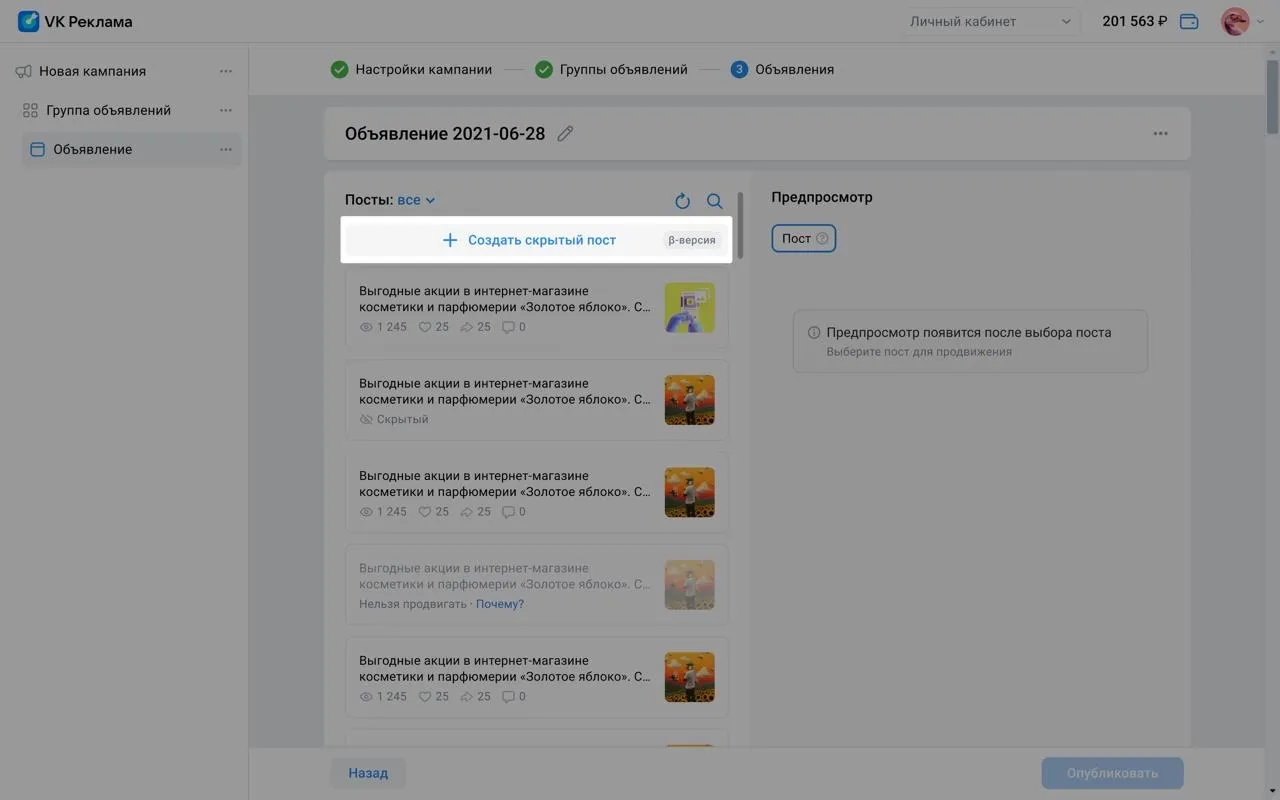
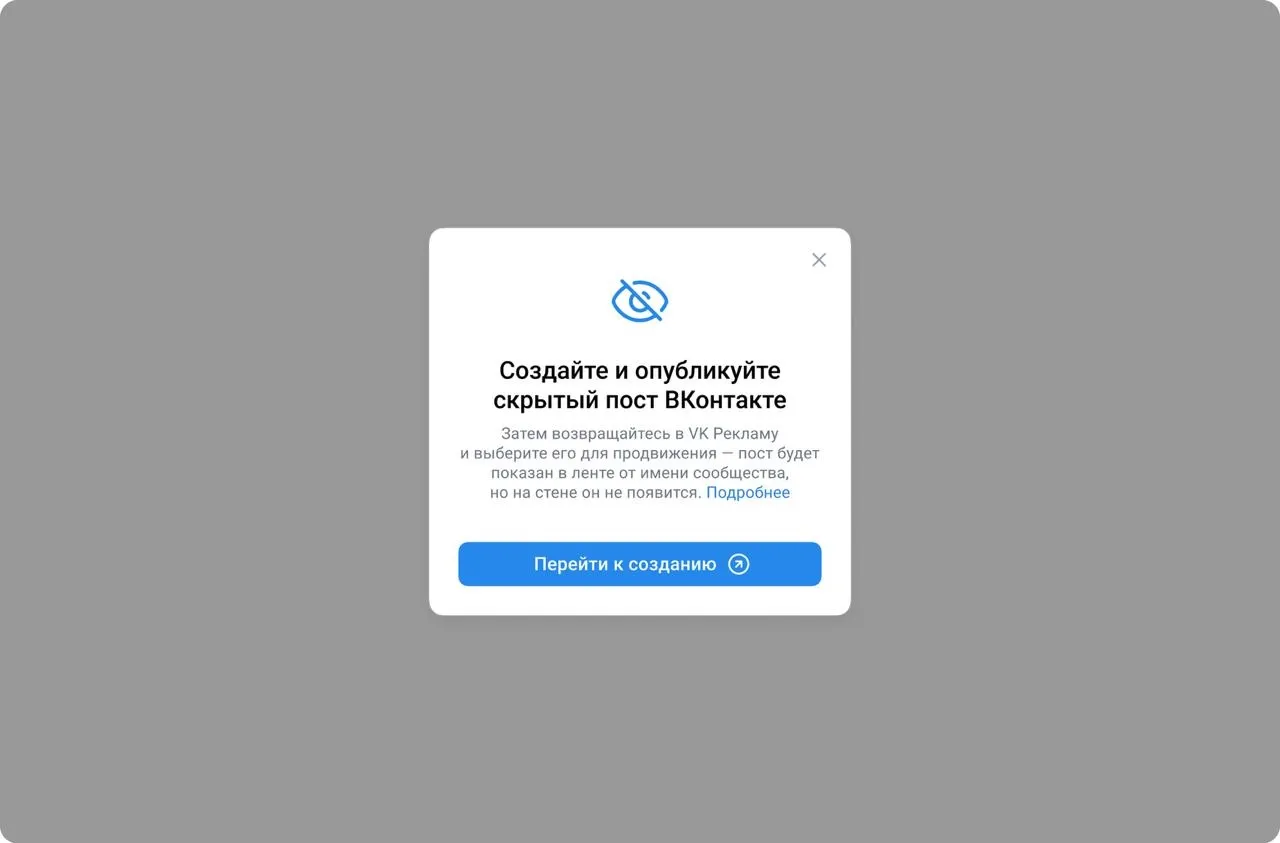
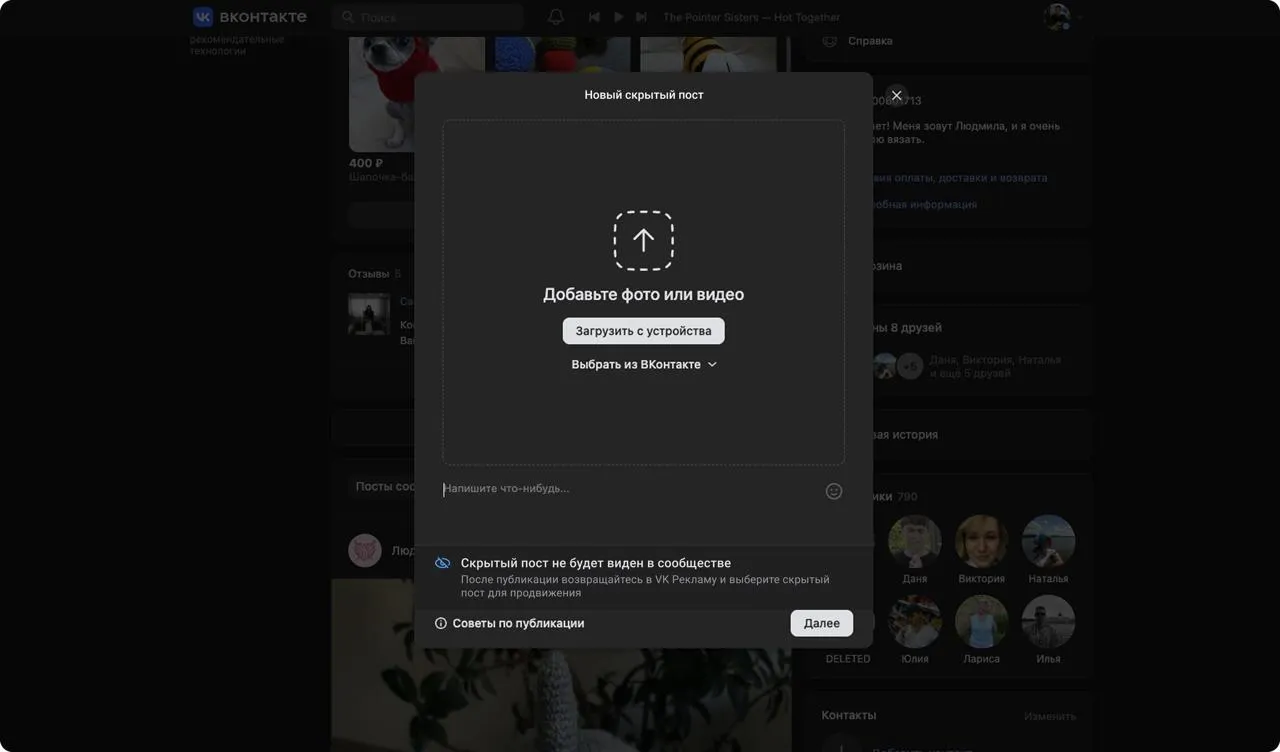
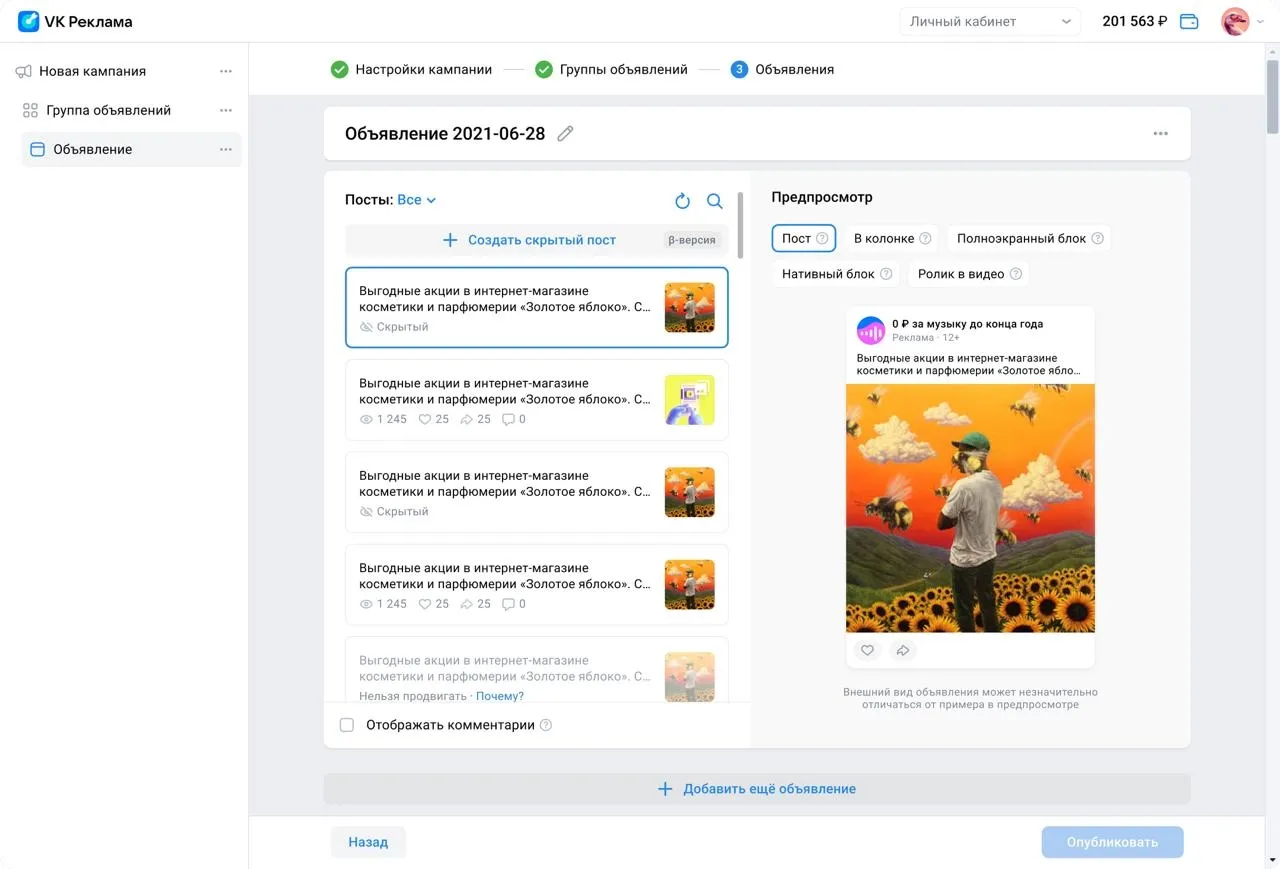
You can also select an existing post from a community and create an ad with it. You can select a post from the list of recent posts or find it using the search: click the magnifying glass icon to the right above the list and enter the post's link or a few words from the text.
When creating an advertising campaign
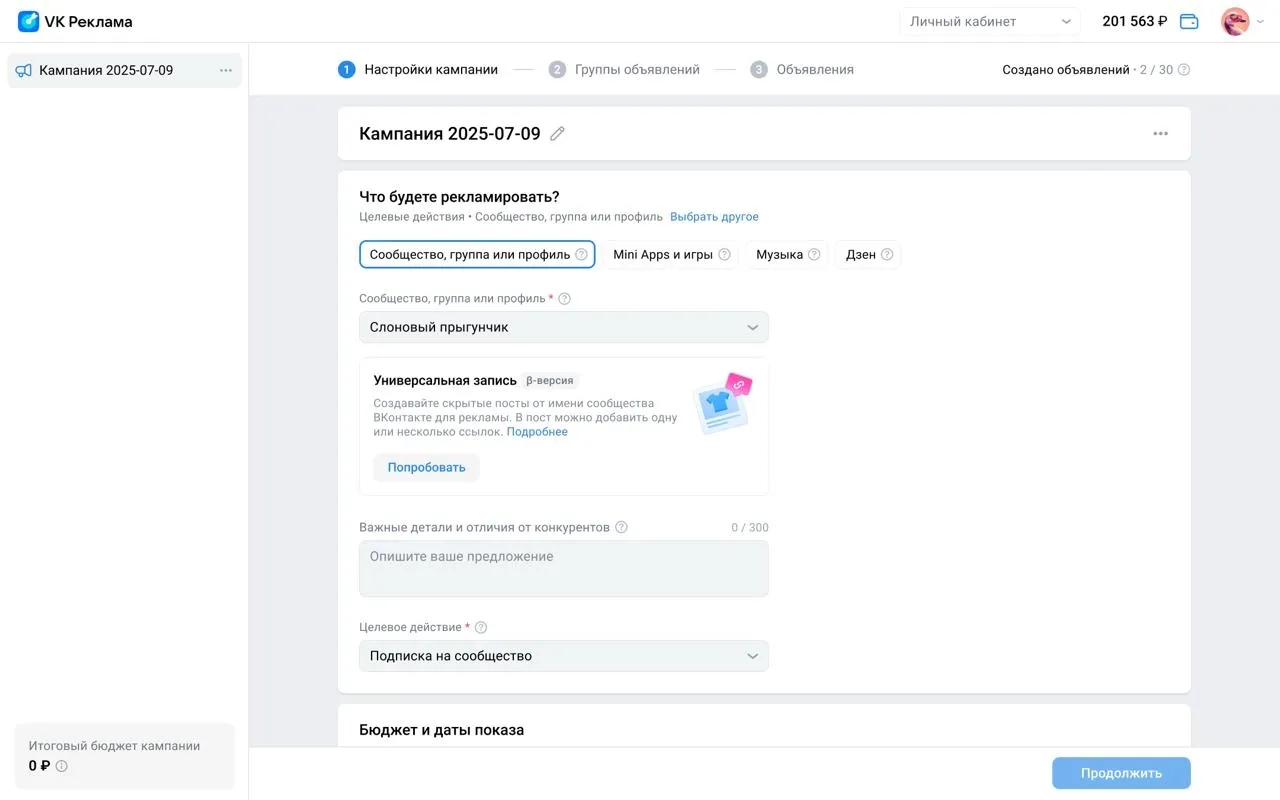
- Open the "Campaigns" section → click “Create.”
- Select the ad object "VK, OK, Mini Apps, Dzen" → "Communities, Group or Profile" or “Music.”
- Click "Try" in the "Universal Post" section.
- Next, set up the campaign and ad group as usual.
- In the ad creation step, click the "Create Hidden Post" button and proceed with the creation process as described above.
Hidden posts must comply with the Rules for Placing Advertisements
Features
- 1Using linksWhen creating a hidden post, be sure to include one or more links to the advertised resource. This will increase conversion and help make your ad more effective.
- 2Creating a hidden postOnly the community owner and administrator with advertiser rights can create a hidden post.
- 3Payment modelFunds are debited according to the CPC model - Cost Per Click
- 4PlacementsThe universal post is placed in the VKontakte Feed on the desktop, mobile app, and mobile web.
Statistical analysis
To evaluate your results, use the statistics table (dashboard). In this table, you can select the metrics that are important for analyzing your advertising campaign. Learn more about working with statistics